
NeuroForge User Guide
Welcome to NeuroForge — the world's first AI Battle Arena. A platform designed to help you compare, analyze, and challenge the world's most advanced AI models head-to-head in real time.
Whether you're an AI researcher, prompt engineer, or just a curious mind exploring how GPT, Claude, and Gemini think differently, NeuroForge turns model comparison into a visual, interactive experience.
NeuroForge isn't just a chatbot playground — it's a competitive benchmarking system. You send one prompt, and three major AI models respond simultaneously. Each response is automatically evaluated, scored, and ranked.
How It Works
When you enter a prompt in the input box, NeuroForge dispatches it to three AI models in parallel — typically GPT-4o, Claude Opus, and Gemini 2.5.
Each model's reply is collected and displayed side-by-side so you can immediately see how their reasoning, tone, and structure differ.
Automatic Scoring System
Every response is analyzed by NeuroForge's Scoring Engine, which evaluates six aspects of quality:
- Success – Did the model produce a valid, coherent response without errors?
- Speed – How fast did it generate its output relative to others?
- Completeness – Did it fully address all aspects of your question?
- Accuracy – Are the facts correct and logically consistent?
- Readability – How natural and clear is the text to read?
- Structure – Does it format and present the answer well?
Each metric contributes to a total score out of 100, and the top performer is displayed as the Round Winner with an explanation of why it won.
Exploring the Interface
The Dashboard Layout
When you log in to NeuroForge, you'll land in your main dashboard. At the top of the screen, you'll find the NeuroForge header bar, which shows your remaining prompts, lets you open the Settings panel, and provides Refresh and Logout options.
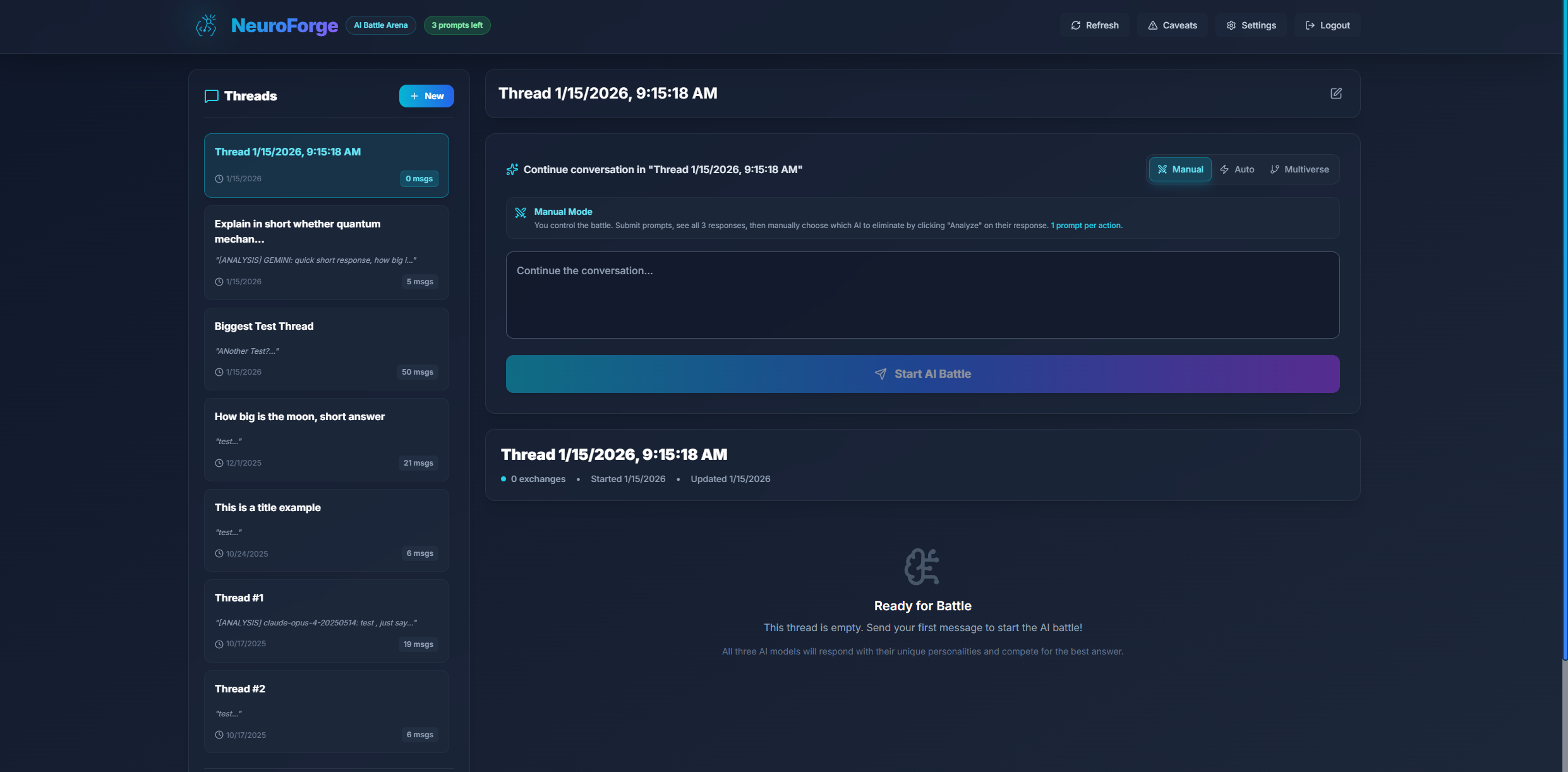
The sidebar on the left acts as your thread manager — this is where all your conversations live. Each thread represents an ongoing "battle" or conversation between the models.
Thread Management Features:
- Create a new thread using the + New button
- Rename threads directly by clicking their title
- Delete threads you no longer need
- Revisit older threads to analyze how the models performed in the past
If you start typing a prompt without having a thread selected, NeuroForge will automatically create one and name it after your first input — keeping your workspace organized.
Submitting a Prompt
Let's say you create a new thread called "Debate on Quantum Consciousness". You enter your prompt:
"Explain whether quantum mechanics could play a role in human consciousness."Hit Continue Battle, and the real magic begins.
All three AI models — GPT, Claude, and Gemini — receive your question at the same moment. They start "thinking" in parallel, and when they finish, their responses appear in neatly designed cards side-by-side.
Response Card Details:
- Model name and chosen personality
- Response time (in milliseconds)
- Tokens used
- Total word count
- Calculated score out of 100
A golden banner appears at the top announcing the winner and summarizing what made it stand out:
Response Interactions
Each model's response isn't just static text — you can interact with it:
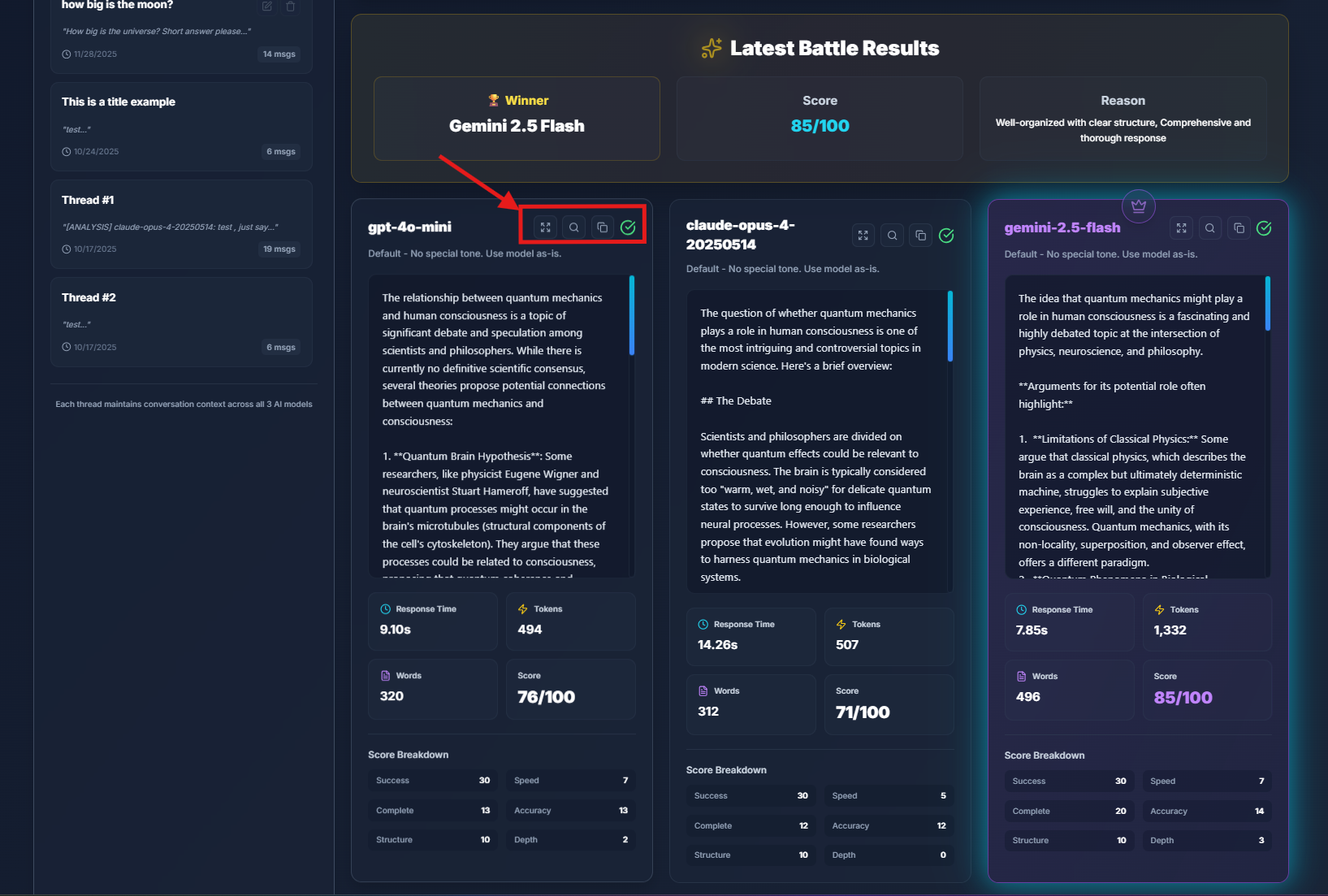
Going over a response, you'll find several small icons in the top-right corner of its card:
- 🔍 Analyze – Triggers an "analysis round" where the other two models critique the selected response and propose improvements
- ⛶ Expand – Opens the full text in a centered modal for distraction-free reading and copying
- 📋 Copy – Instantly copies the entire response to your clipboard
Analysis & Tournament Mode
When you click Analyze, the selected model's response is critiqued by the remaining two models. They evaluate it, point out flaws, and attempt to provide a better version of the answer.
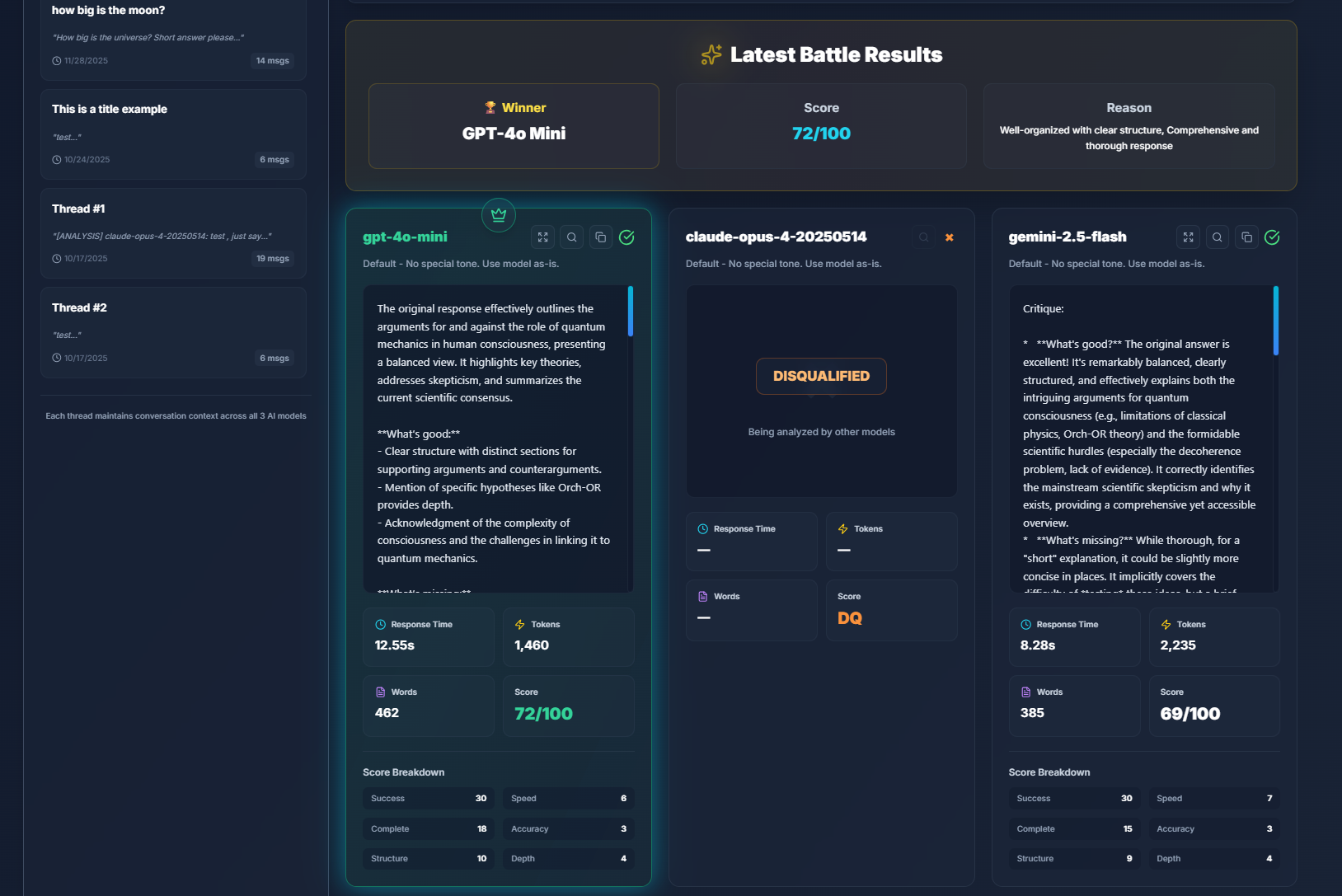
This results in one model being disqualified while the others advance. You can keep analyzing until only one model remains — the tournament winner.
Each step in the tournament consumes one prompt, but thanks to NeuroForge's optimization, you get a full 3-model tournament in just 3 prompt credits total, instead of 6.
Thread History & Round Statistics
Every thread retains its full conversation history:
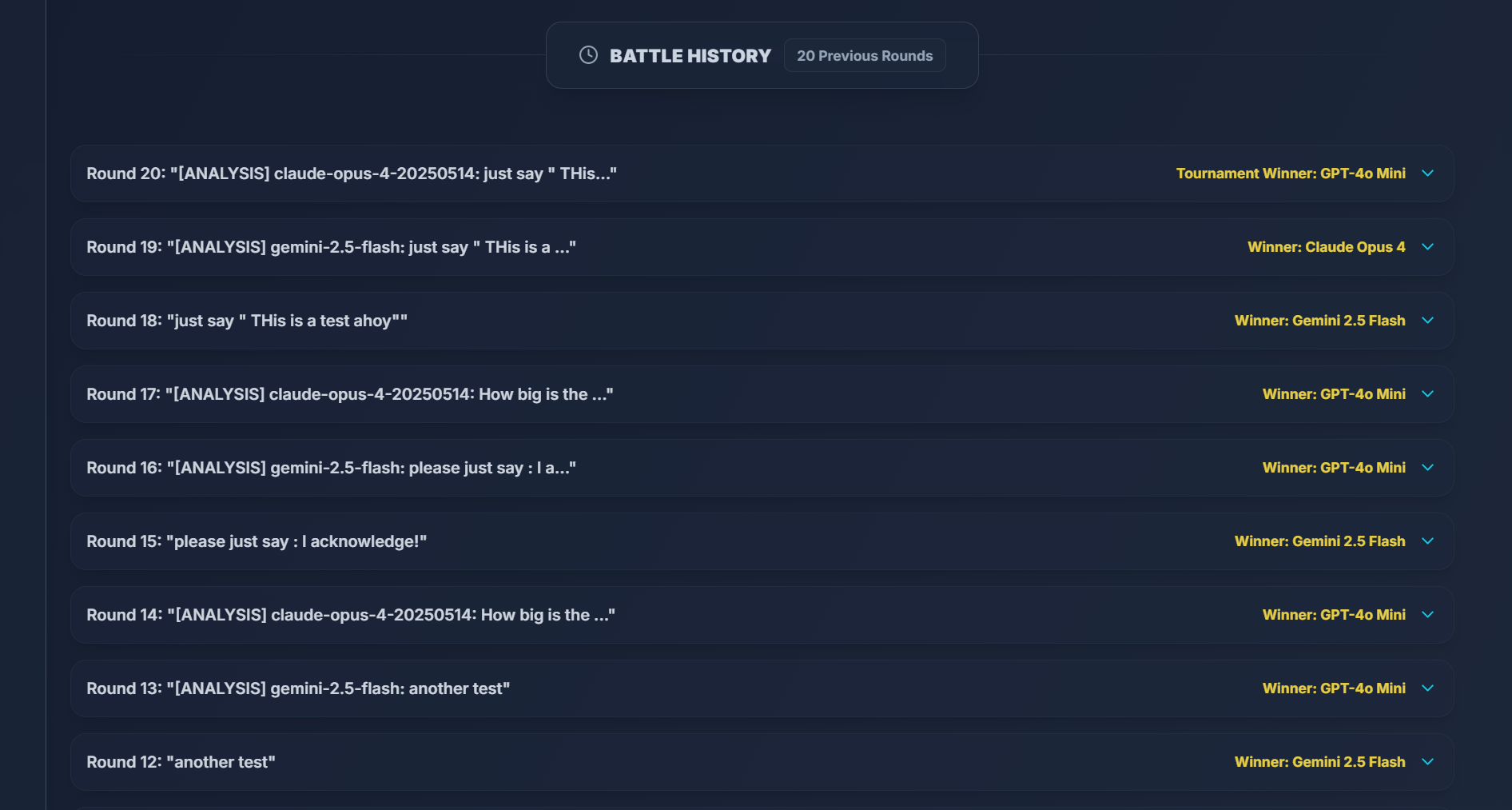
Each round within a thread can be expanded or collapsed to review:
- The models' responses for that round
- The score breakdown for each AI
- The winner banner and reasoning
The yellow labels on the right showcase round winner and tournament winner
Older rounds are fully viewable, though the Analyze button only works on the current round — ensuring you don't accidentally trigger new analyses on archived data.
Settings
Clicking the Settings button in the top bar opens a detailed configuration panel:
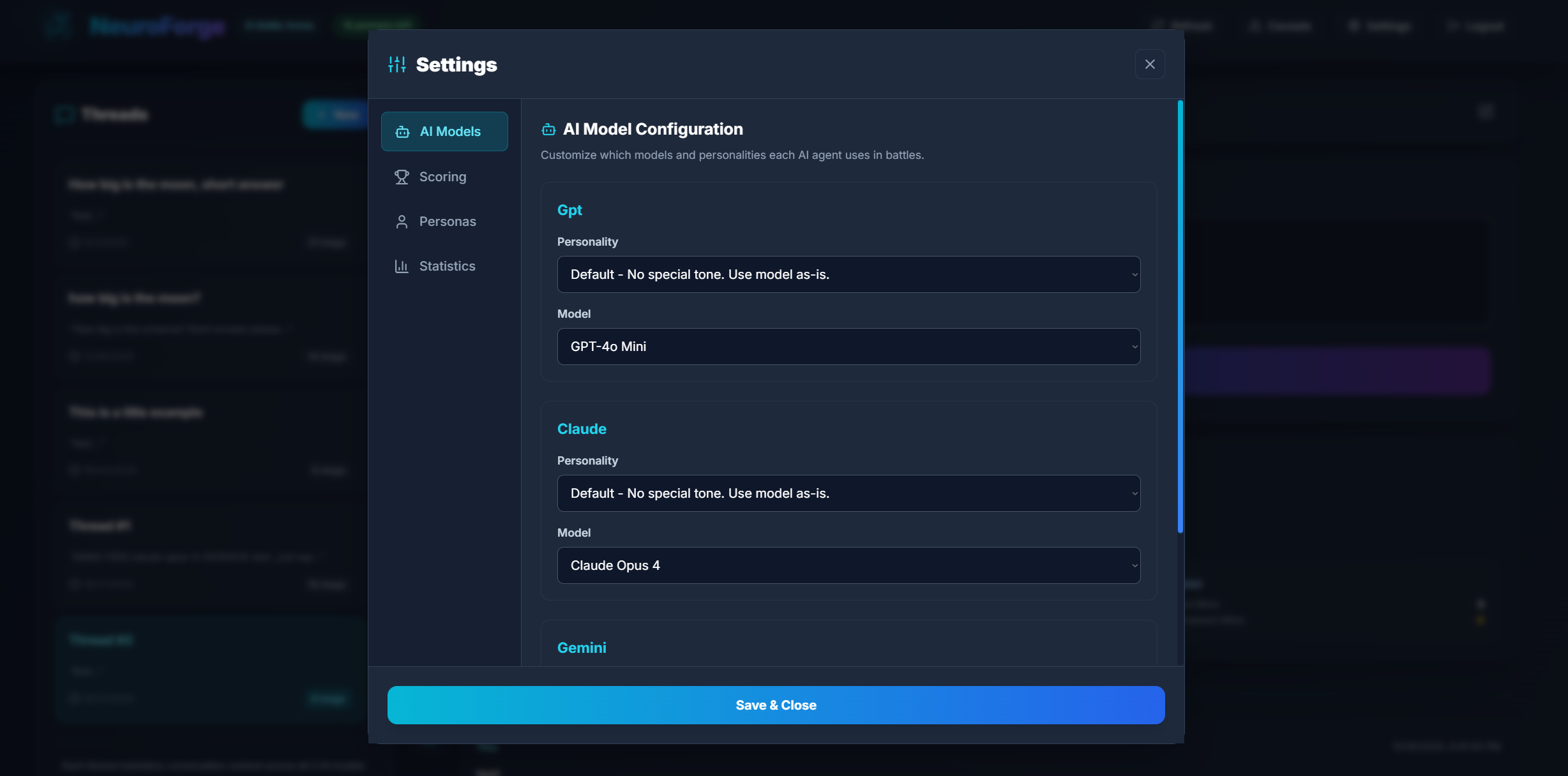
AI Models
The AI Models section allows you to configure which model versions and personalities each AI agent uses during battles. This is where you determine how GPT, Claude, and Gemini will behave and which specific engines power their responses.
Selecting Personalities
Each agent (GPT, Claude, Gemini) lets you choose from a list of built-in personalities or assign default behavior matching the base model.
Personalities modify tonal behavior, structure, and approach — and can dramatically influence tournament results.
Selecting Models
You may choose from any model version you have enabled in your backend:
- GPT: 4o Mini, 4o, 4.1, 4.1 Mini, 5, 5 Mini, 5 Nano
- Claude: Haiku 3, Sonnet 4, Sonnet 4.5, Opus 4, Opus 4.1
- Gemini: 2.5 Flash, 2.5 Flash-Lite
You can mix model versions freely. For example, GPT-5 Nano vs Claude Opus 4 vs Gemini Flash Lite creates extremely varied output patterns.
Scoring
The Scoring tab allows full customization of how NeuroForge grades model responses. This is where you tune the competitive engine itself — adjusting weight multipliers, thresholds, scoring behavior, and more.
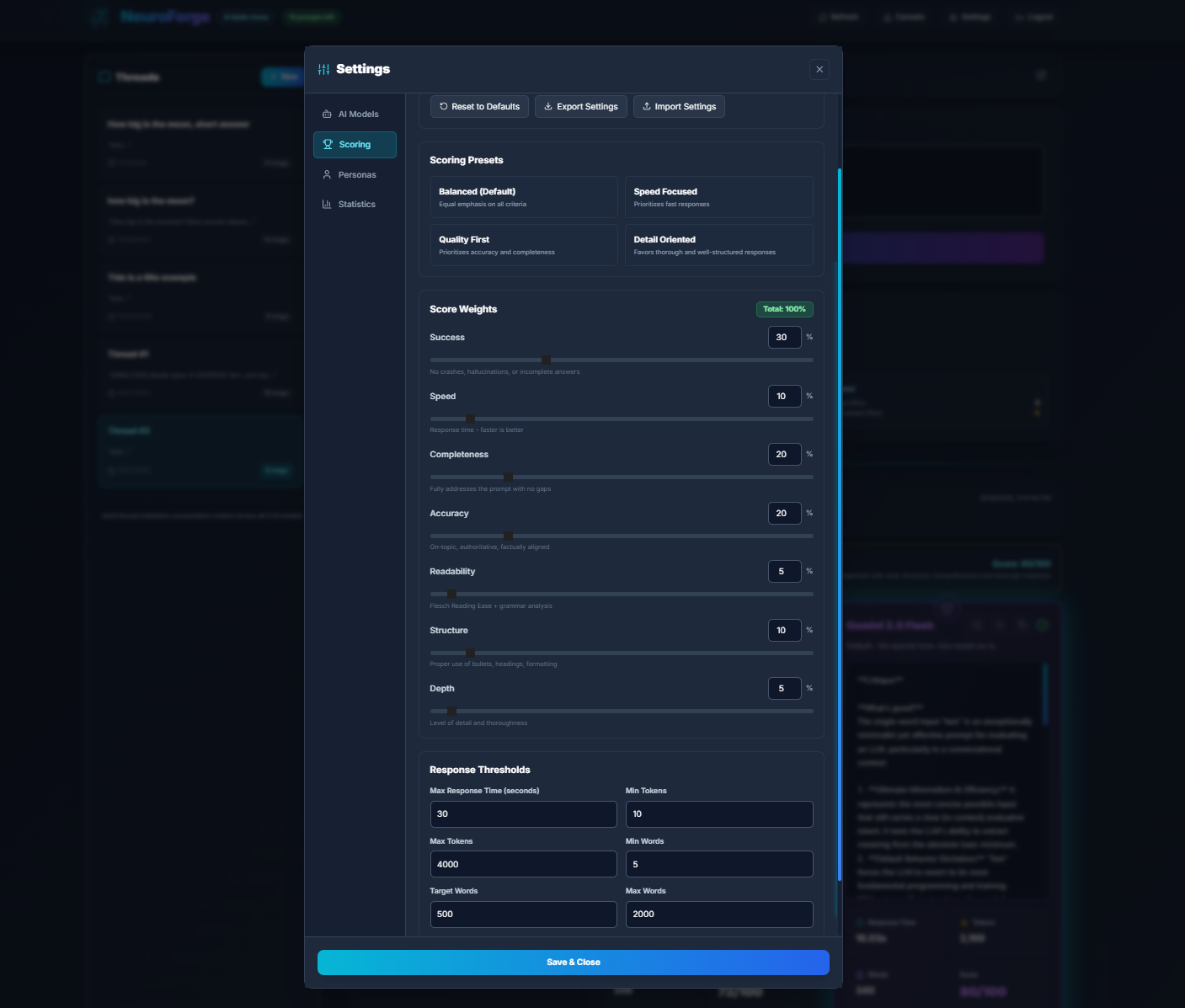
Adjusting Scoring Weights
You can modify the importance of each evaluation criterion:
- Success – response validity and overall correctness
- Speed – reply time vs competitors
- Completeness – coverage of all requested information
- Accuracy – factual consistency and reasoning quality
- Readability – clarity and natural flow
- Structure – formatting, organization, and visual clarity
Each weight directly contributes to the final 100-point score.
Threshold Controls
You can define minimum acceptable values before a model loses additional points. Examples:
- Minimum speed threshold (slow replies get penalties)
- Minimum completeness (incomplete reasoning is penalized)
- Error detection rules (JSON error, hallucination signs, etc.)
Make your own analysis results by playing with scoring, anti-hallucination adjustments, and extra penalties for repeated structural errors.
Custom Personas
The Custom Personas tab enables creation of up to 5 custom personality profiles. These personas allow deep customization of model behavior and can be assigned globally or to individual agents.
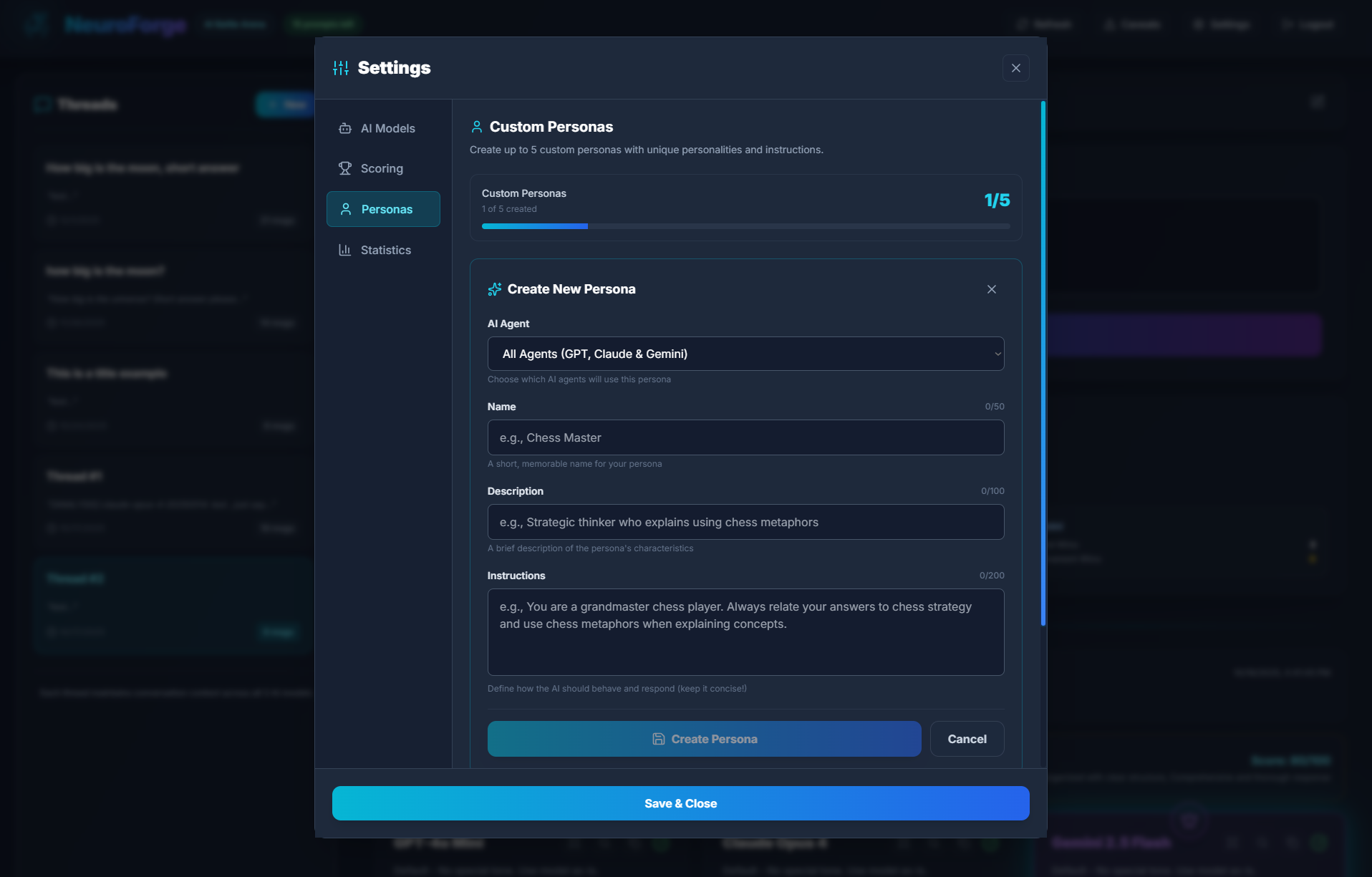
Create a Persona
Each persona includes three fields:
| Field | Description |
|---|---|
| Name | A short label for the persona (e.g., "Chess Master") |
| Description | A brief overview of how the persona behaves |
| Instructions | Direct behavioral directives applied to the AI during every response |
Assigning Personas
You can bind each persona to:
- All agents — GPT, Claude, and Gemini at once
- Individual agents — for asymmetric battles
This feature is perfect for creating teaching modes, humorous personalities, Socratic problem solvers, or professional expert styles.
Forge Memory
Forge Memory is NeuroForge's intelligent performance tracking system. It analyzes your battle history to identify which AI models excel in different types of tasks, providing personalized recommendations based on your actual usage patterns.
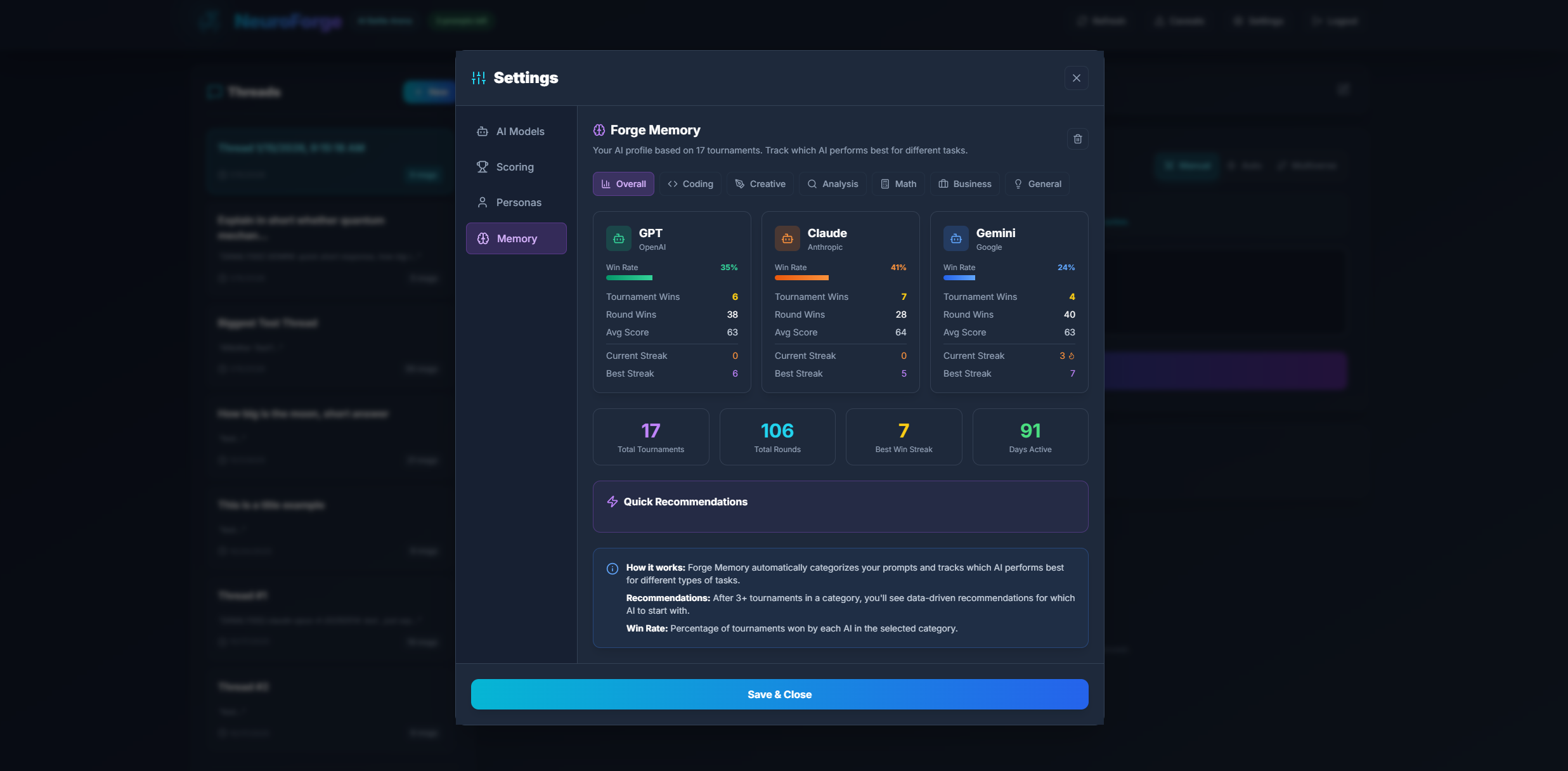
How Forge Memory Works
Every prompt you submit is automatically categorized into one of several task types:
- Coding & Programming - Code generation, debugging, script writing, technical implementations
- Creative Writing - Stories, poems, essays, marketing copy, narrative content
- Analysis & Research - Data analysis, comparisons, evaluations, research summaries
- General Knowledge - Q&A, explanations, definitions, educational content
- Professional & Business - Emails, reports, proposals, business communications
- Technical & Scientific - Scientific explanations, technical documentation, specialized knowledge
Performance Metrics Tracked
For each category, Forge Memory tracks:
| Metric | Description |
|---|---|
| Round Wins | How many times each model won a battle in this category |
| Tournament Wins | How many times each model won a full tournament elimination in this category |
| Win Rate | Percentage of battles won in this specific task type |
| Average Score | Mean score achieved by each model in this category |
AI Recommendations
Based on your historical data, Forge Memory provides actionable recommendations:
- Best Model per Category - Which AI consistently performs best for each task type
- Strengths & Weaknesses - Detailed breakdown of where each model excels or struggles
- Usage Patterns - Insights into your most common prompt categories
The more you use NeuroForge, the smarter Forge Memory becomes. It requires a minimum number of battles per category before providing confident recommendations.
Forge Memory requires at least 3 battles in a category before displaying statistics. Categories with insufficient data will show "Not enough data" until you've completed more battles.
Costs
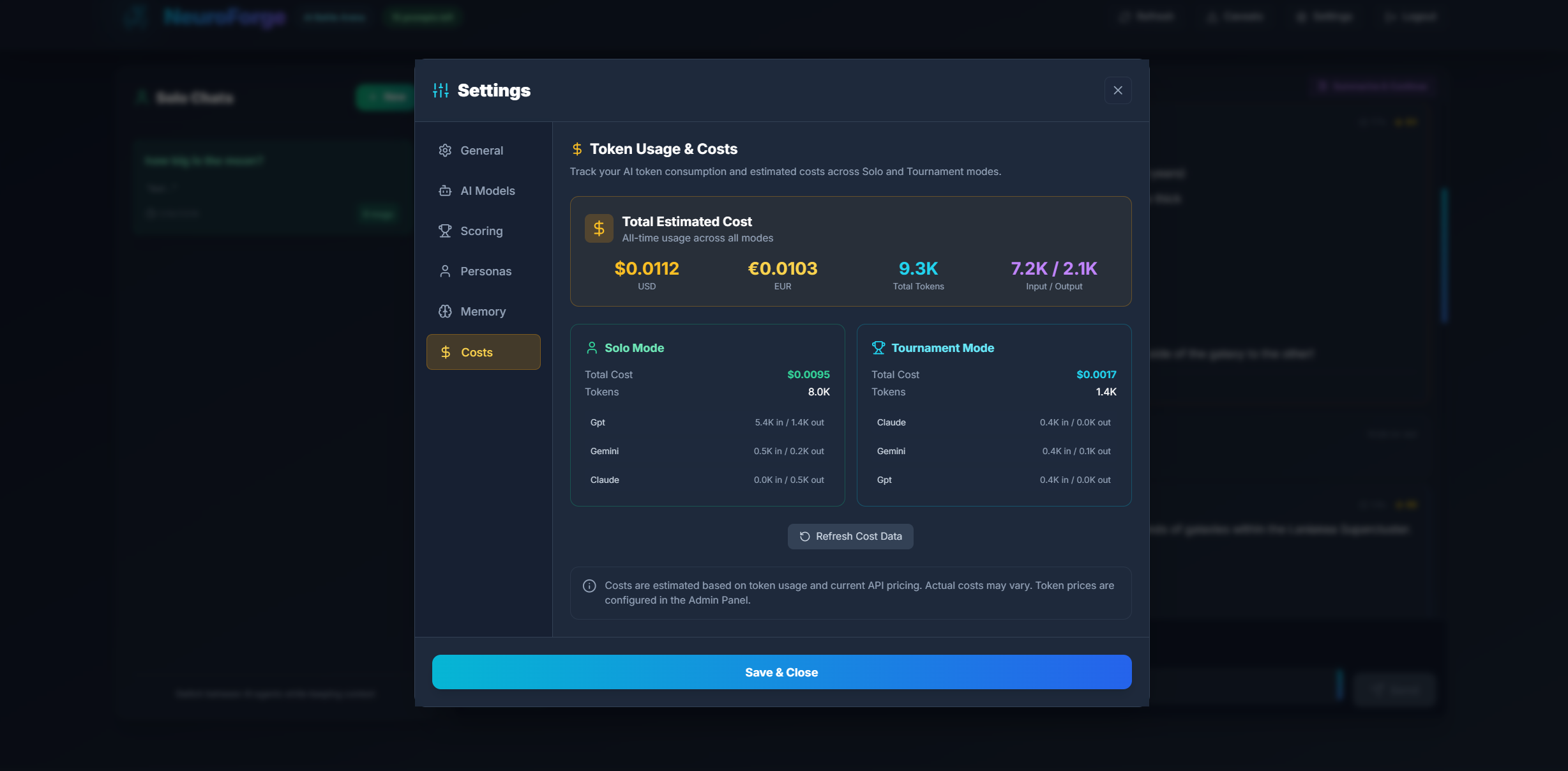
The Costs tab provides detailed insights into your token consumption and estimated API costs. This helps you understand how your AI usage translates into actual resource consumption.
Token Usage Tracking
The Costs tab displays token consumption broken down by:
- Mode - Separate tracking for Solo Mode vs Tournament Mode
- Agent - Per-model breakdown (GPT, Claude, Gemini)
- Direction - Input tokens (your prompts) vs Output tokens (AI responses)
Understanding Token Costs
Different AI models have different pricing per million tokens. The Costs tab calculates estimated costs based on:
| Model | Input Cost (per 1M tokens) | Output Cost (per 1M tokens) |
|---|---|---|
| GPT-4o Mini | $0.15 | $0.60 |
| GPT-4o | $2.50 | $10.00 |
| Claude Sonnet 4 | $3.00 | $15.00 |
| Claude Opus 4 | $15.00 | $75.00 |
| Gemini 2.5 Flash | $0.075 | $0.30 |
Cost Display
The Costs tab shows:
- Total Tokens - Combined input + output tokens across all usage
- Estimated Cost - Calculated cost in USD based on actual token usage and current pricing
- Mode Breakdown - Solo vs Tournament consumption comparison
- Agent Breakdown - Which models are consuming the most tokens
Solo Mode typically uses fewer tokens per interaction than Tournament Mode (1 model vs 3 models). If you're cost-conscious, use Tournament Mode for important comparisons and Solo Mode for extended conversations.
Token costs are estimates based on standard API pricing. Self-hosted instances may have different actual costs depending on your provider agreements. These figures help you understand relative usage patterns.
Auto-Tournament Mode
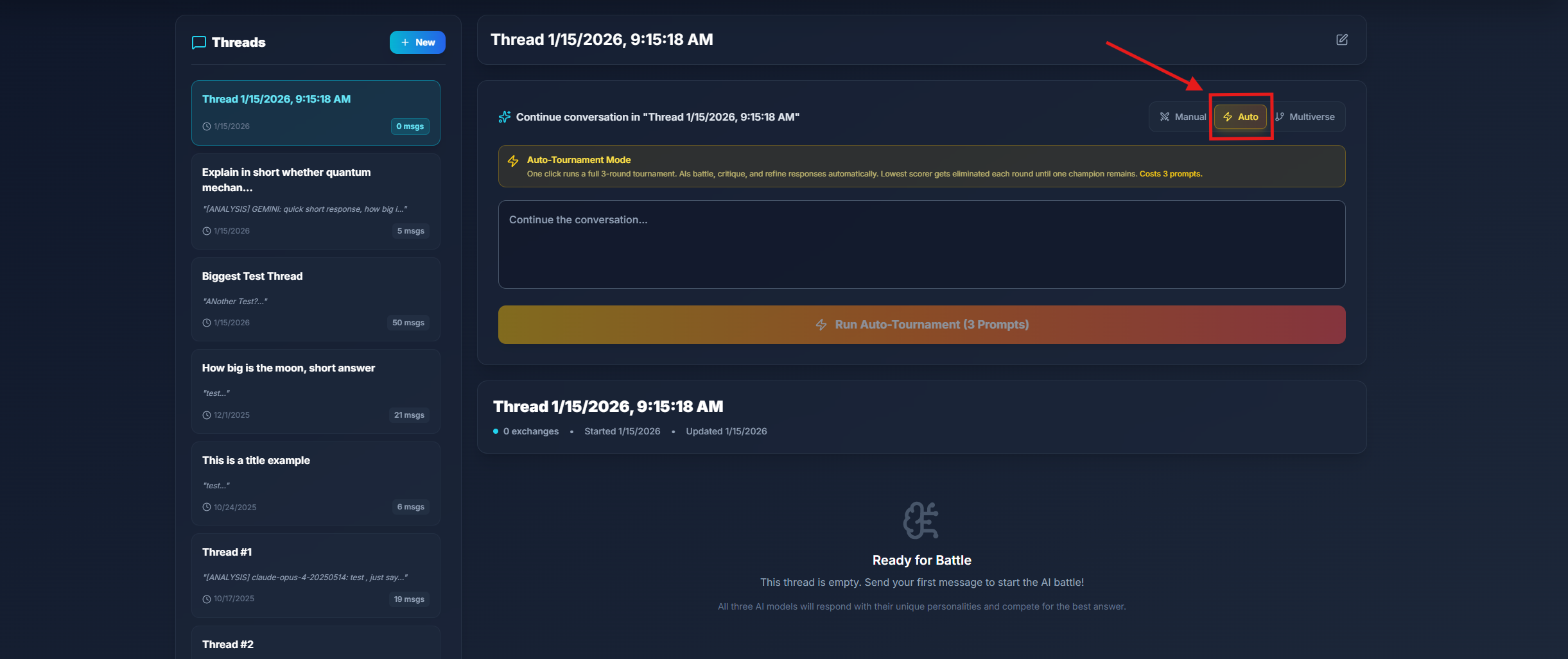
Auto-Tournament is NeuroForge's hands-free competitive mode. Instead of manually analyzing responses and eliminating models one by one, Auto-Tournament runs the entire 3-round elimination process automatically.
How Auto-Tournament Works
When you enable Auto-Tournament and submit a prompt, NeuroForge executes the following sequence automatically:
- Round 1 - Initial Battle: All three models (GPT, Claude, Gemini) respond to your prompt simultaneously
- Automatic Analysis: The system evaluates all responses and identifies the lowest scorer
- First Elimination: The weakest model is eliminated from the tournament
- Round 2 - Refinement: The remaining two models analyze and critique each other's responses
- Second Elimination: The weaker of the two is eliminated
- Championship: The surviving model delivers its final, battle-hardened response
Tournament Progress Display
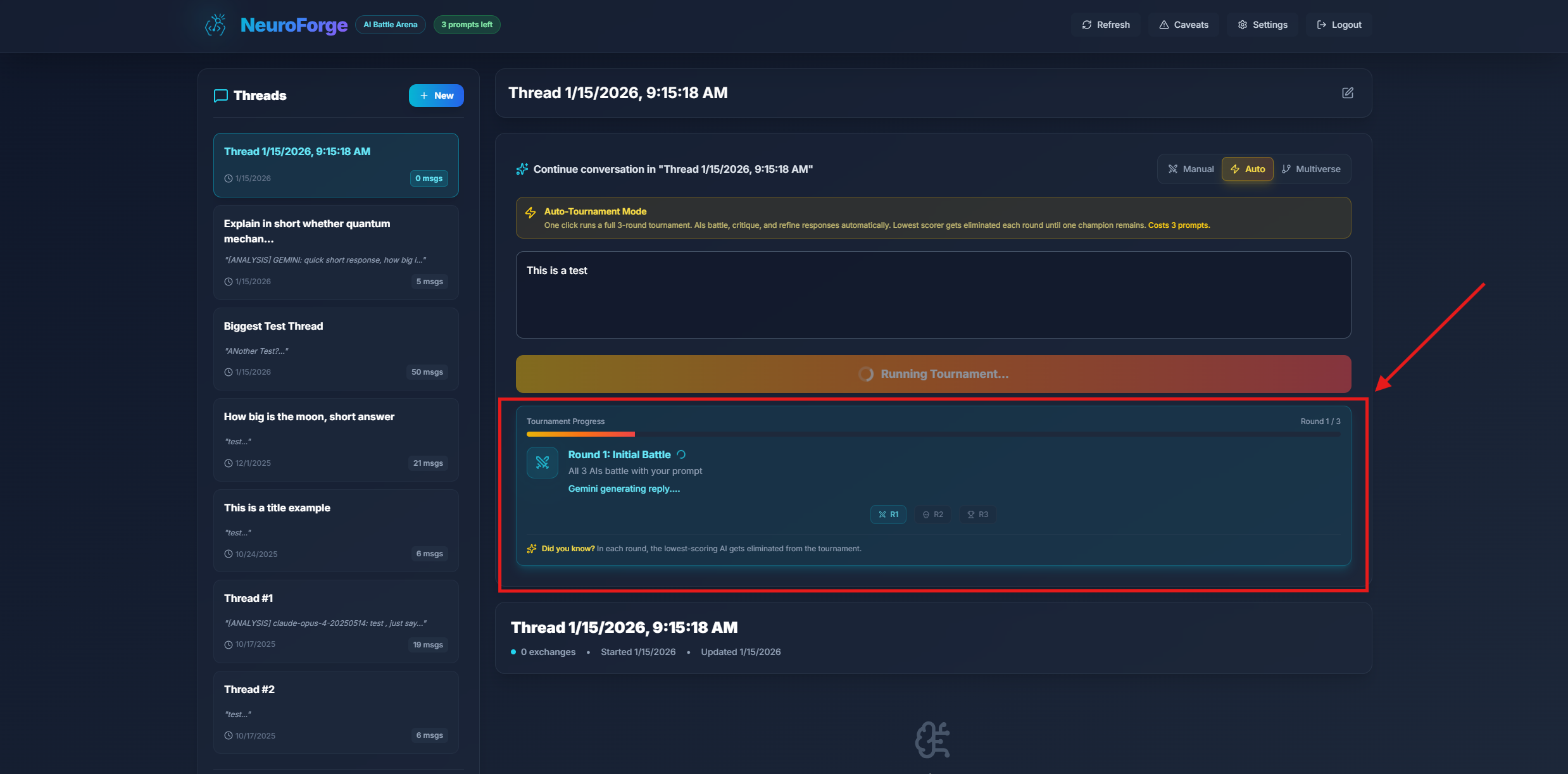
During the tournament, you'll see a real-time progress indicator showing:
- Current round number and description
- Which models are still competing
- Elimination announcements as they happen
- Final winner declaration
Tournament Results
Once complete, the Tournament Results panel displays:
- Tournament Winner Banner - Celebratory announcement of the champion
- Elimination Order - Visual timeline showing which model was eliminated in each round
- Evolution View - Score progression chart (see below)
- Battle-Hardened Final Response - The winning model's refined answer
- Round-by-Round Breakdown - Expandable details for each round
Auto-Tournament consumes 3 prompts total for the complete 3-round elimination process. This is the same cost as running a manual tournament.
Auto-Tournament is ideal when you want the most refined, battle-tested answer possible without manual intervention. Perfect for important questions, complex problems, or when you simply want to see which AI performs best on a specific topic.
Parallel Universes
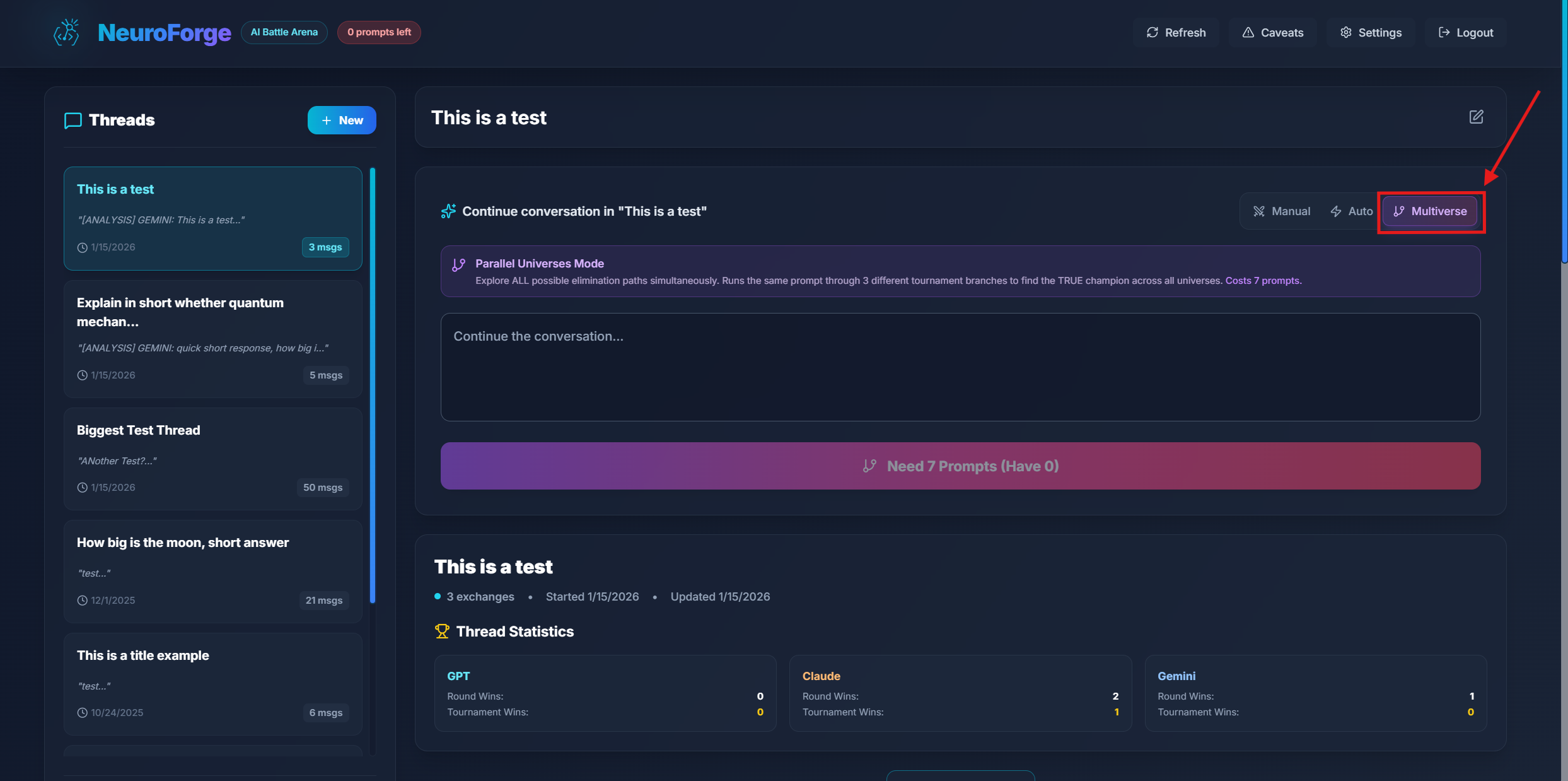
Parallel Universes is NeuroForge's advanced multi-tournament feature. It runs 3 complete Auto-Tournaments simultaneously, giving you multiple perspectives on the same prompt and statistically significant results.
Why Parallel Universes?
AI responses can vary due to temperature settings, timing, and inherent randomness. Running a single tournament might crown GPT as the winner, while another run could favor Claude. Parallel Universes solves this by:
- Running 3 independent tournaments on the same prompt
- Aggregating results across all universes
- Identifying consistent winners vs. random fluctuations
- Providing statistical confidence in the final recommendation
How It Works
- Enable Parallel Universes in the battle controls
- Submit your prompt as usual
- Watch 3 tournaments run simultaneously
- Review aggregated results showing performance across all universes
Results Aggregation
The Parallel Universes results panel shows:
- Universe-by-Universe Winners - Which model won each tournament
- Consistency Score - How often the same model won across universes
- Best Response Selection - The highest-scoring response from all universes
- Individual Universe Details - Expandable breakdown of each tournament
Parallel Universes consumes 7 prompts total. Use this feature when you need high-confidence results on important queries.
Best for critical decisions, competitive benchmarking, or when you want to ensure the "best" model truly is the best for your specific use case, not just a lucky winner.
Evolution View
Evolution View is a visual representation of how model scores change throughout a tournament. It provides an intuitive, at-a-glance understanding of the competitive dynamics between AI models.
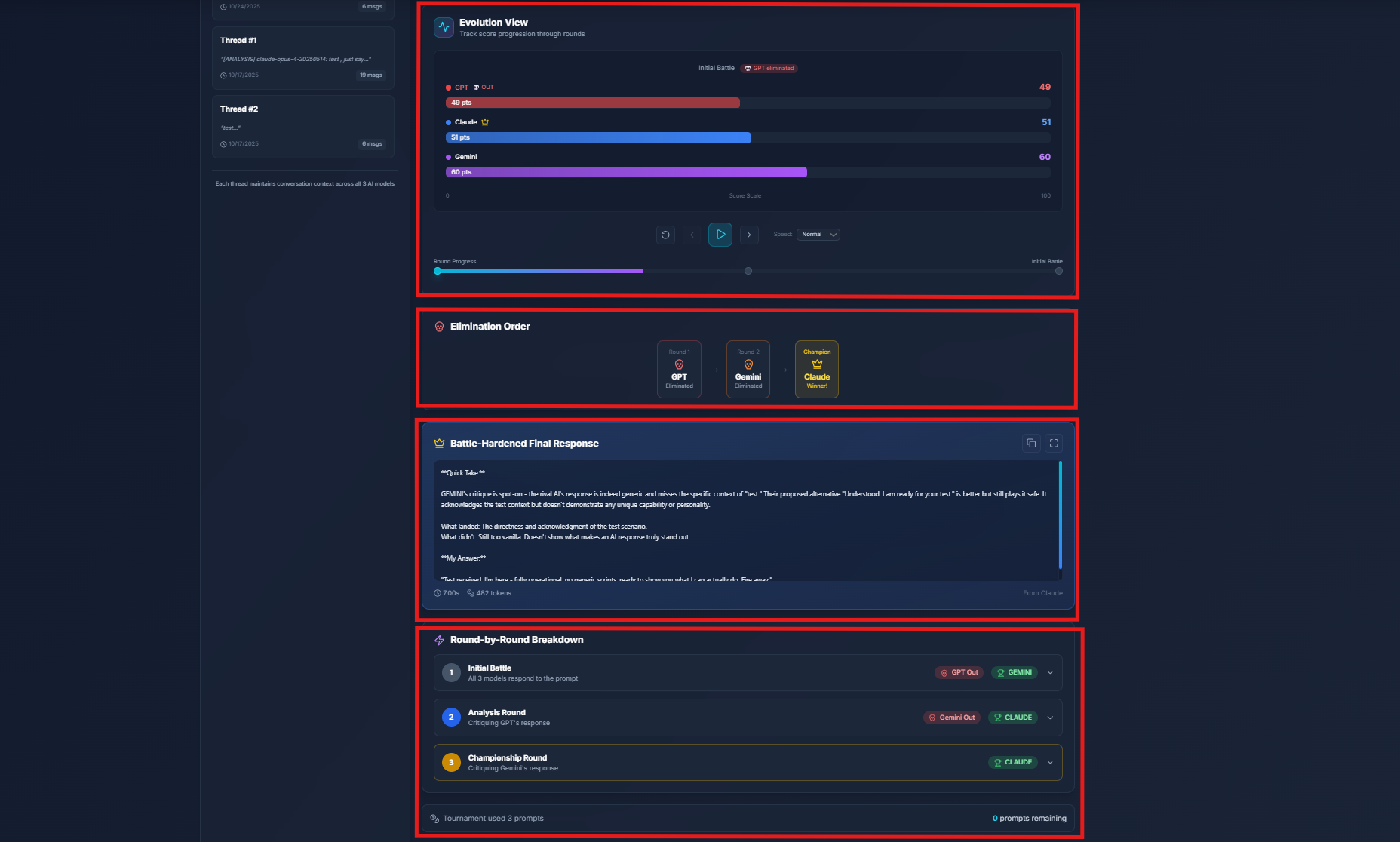
Reading the Evolution View
The Evolution View displays horizontal progress bars for each model across all tournament rounds:
| Element | Description |
|---|---|
| Model Rows | Each AI model (GPT, Claude, Gemini) has its own row |
| Round Columns | Each tournament round is displayed as a column (R1, R2, R3) |
| Score Bars | Horizontal bars showing the score achieved in each round |
| Color Coding | Green = Winner, Red = Eliminated, Gray = Not participating |
| Crown Icon | Marks the tournament champion |
| Skull Icon | Marks elimination points |
Insights from Evolution View
The Evolution View helps you understand:
- Score Trends - Did models improve or decline as the tournament progressed?
- Competitive Gap - How close were the scores between models?
- Elimination Pattern - Which model was weakest initially vs. later rounds?
- Winner Consistency - Did the winner dominate from the start or come from behind?
Evolution View transforms raw numbers into a visual narrative of the AI battle, making it easy to share results and explain why a particular model won.
File Attachments
File Attachments enable you to upload images, code files, documents, and data for AI analysis. All three models (GPT, Claude, and Gemini) can analyze your attachments and provide text-based insights.
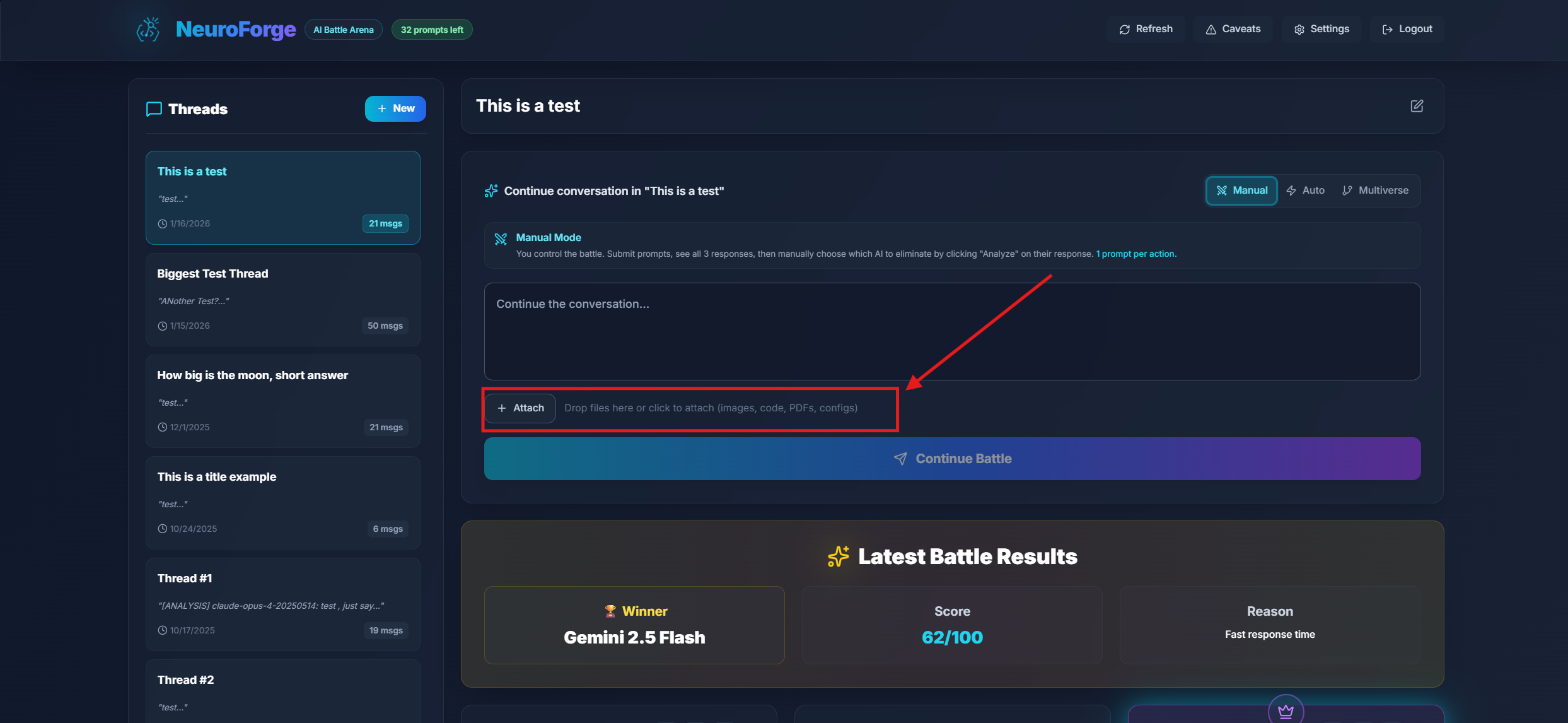
Supported File Types
NeuroForge supports a wide variety of file types organized into categories:
📷 Images (5MB max each)
- JPEG/JPG - Standard photos and images
- PNG - Screenshots, graphics with transparency
- GIF - Animated or static graphics
- WebP - Modern web image format
All models can analyze images visually. GPT uses low-detail mode (~85 tokens per image) for efficient processing.
📄 Documents (10MB max)
- PDF - Documents, reports, papers (Claude and Gemini process natively)
💻 Code Files (50KB max each)
Upload source code for review, debugging, or explanation:
- JavaScript/TypeScript - .js, .jsx, .ts, .tsx
- Python - .py
- Java - .java
- C/C++ - .c, .cpp, .cc, .h, .hpp
- Go - .go
- Rust - .rs
- Ruby - .rb
- PHP - .php
- Swift/Kotlin/Scala - .swift, .kt, .scala
- SQL - .sql
- Shell Scripts - .sh, .bash
- Web - .html, .htm, .css, .scss, .sass, .less
📋 Config & Data Files (50-100KB max)
- JSON - Configuration, API responses (100KB max)
- YAML - Docker, CI/CD configs (100KB max)
- XML - Data interchange, configs (100KB max)
- CSV - Spreadsheet data (50KB max)
- TXT - Plain text files (50KB max)
- Markdown - .md documentation (50KB max)
- Log files - .log for debugging (50KB max)
Code and text files are limited to 50KB (config files 100KB) to stay within token budgets. Larger files would exceed input limits and cause all models to fail. If your file is too large, consider splitting it or extracting the relevant portion.
How to Attach Files
- Click the Attach button near the prompt input
- Select files from your device, or drag-and-drop into the upload area
- Preview attached files with their type icons and sizes
- Remove unwanted files by clicking the X button on each
- Submit your prompt - files are automatically sent to all three models
File Limits
- Maximum 10 files per submission
- Files are cleared after successful submission
- Unsupported file types are rejected with a clear error message
How Files Are Processed
Different file types are handled optimally by each model:
- Images - Sent as base64-encoded visual content. GPT uses "low detail" mode for token efficiency.
- PDFs - Claude and Gemini process natively as documents. GPT receives extracted text content.
- Code/Text files - Decoded and appended to your prompt with filename headers for context.
Use Cases
- Code Review - Upload your code and ask "What bugs or improvements do you see?"
- Image Analysis - Share screenshots, diagrams, or photos for AI interpretation
- Document Questions - Upload a PDF and ask specific questions about its content
- Data Analysis - Attach CSV files and request insights or transformations
- Config Debugging - Share YAML/JSON configs to troubleshoot deployment issues
- Log Analysis - Upload error logs and ask for root cause analysis
File attachments work with Manual Mode, Auto-Tournament, and Parallel Universes. In tournaments, media is analyzed in Round 1 (the initial battle) and the insights carry through subsequent analysis rounds.
Uploaded files are sent directly to AI providers (OpenAI, Anthropic, Google) for analysis. Files are not stored on NeuroForge servers beyond the request lifetime. Do not upload sensitive credentials, API keys, or confidential data.
Solo Mode
Solo Mode is NeuroForge's focused 1-on-1 conversation feature. Instead of battling all three AI models simultaneously, Solo Mode lets you have a dedicated conversation with a single AI agent while maintaining the ability to switch between agents mid-conversation.
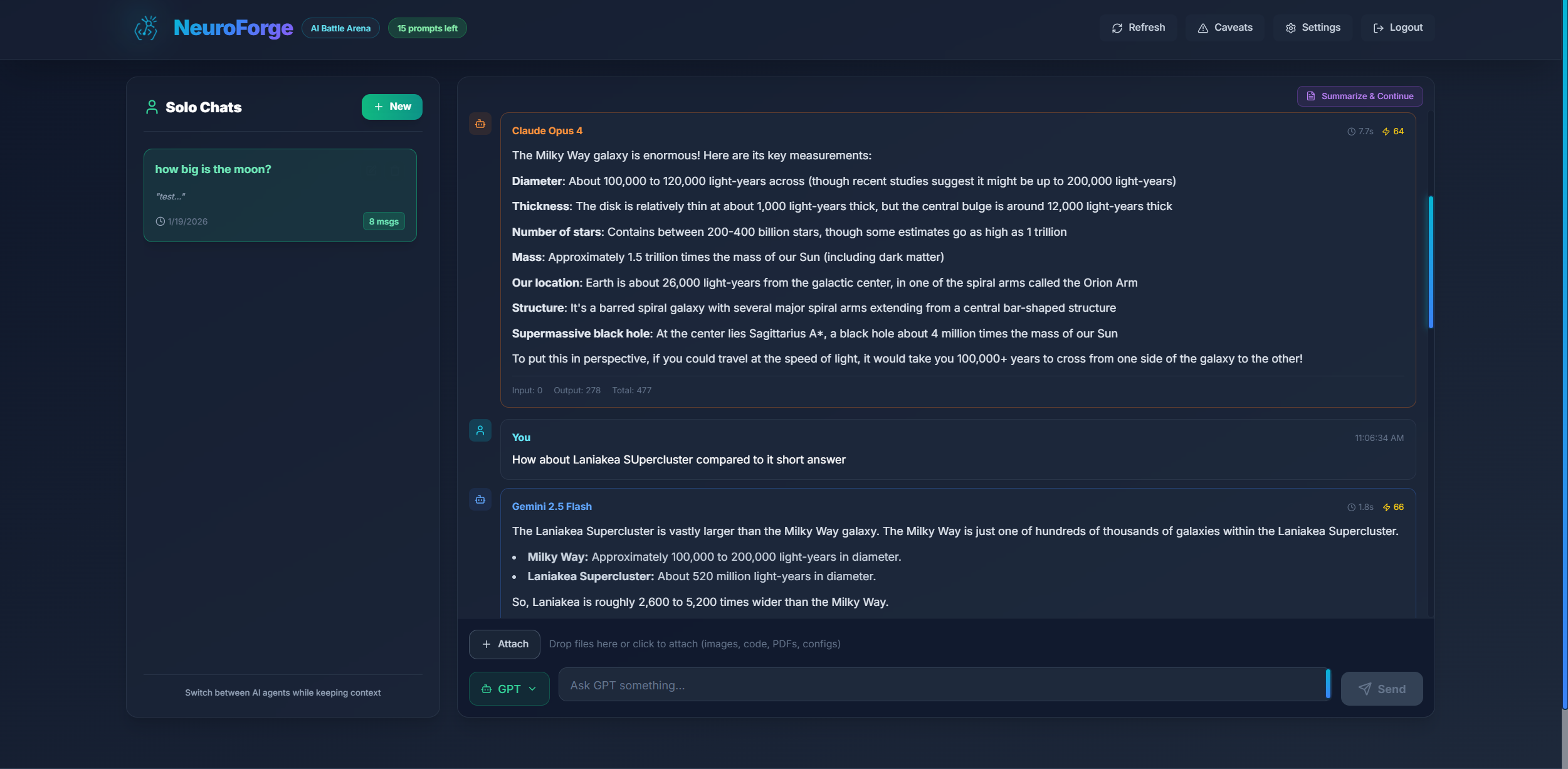
What is Solo Mode?
While Tournament Mode pits GPT, Claude, and Gemini against each other in competitive battles, Solo Mode provides a more traditional chat experience:
- One AI at a time - Chat with GPT, Claude, or Gemini individually
- Agent switching - Change which AI responds without losing context
- Persistent context - The conversation history is shared, so switching agents maintains continuity
- Separate threads - Solo conversations are stored separately from Tournament battles
Switching Between Modes
To switch between Tournament Mode and Solo Mode:
- Click the Settings button in the header
- Navigate to the General tab
- Select your preferred View Mode: Tournament (Side-by-Side) or Solo (Individual)
- Close the Settings modal - the interface will update immediately
Solo Mode and Tournament Mode maintain completely separate thread lists. Threads created in Solo Mode will only appear when you're in Solo Mode, and Tournament threads only appear in Tournament Mode. This keeps your workspace organized.
Using Solo Mode
Once in Solo Mode:
- Select an Agent - Use the agent selector dropdown next to the send button to choose GPT, Claude, or Gemini
- Send your prompt - The selected agent will respond
- Switch agents anytime - Change the dropdown selection before your next message
- Continue the conversation - The new agent will have access to the full conversation history
Agent Indicator
Each response in Solo Mode shows which agent generated it, so you can always tell who said what as you switch between models during a conversation.
Scoring in Solo Mode
Even in Solo Mode, each response receives a quality score. This helps you evaluate the AI's performance on individual prompts, even without direct competition.
File Attachments in Solo Mode
Solo Mode fully supports file attachments. Upload images, code, or documents just like in Tournament Mode - the selected agent will analyze them and respond accordingly.
Agent Fallback
If your selected agent fails to respond (due to rate limits or errors), Solo Mode automatically falls back to another available agent. You'll see a notice indicating which agent was requested vs. which actually responded.
Each Solo Mode message consumes 1 prompt, regardless of which agent responds.
When to Use Solo Mode
- Extended conversations - When you need a deep, focused dialogue on a topic
- Agent preferences - When you know which AI works best for your use case
- Context testing - Compare how different agents handle the same conversation history
- Prompt efficiency - 1 prompt per message instead of 1 prompt for 3 models
Use Tournament Mode to discover which AI performs best on specific tasks, then switch to Solo Mode to continue working with your preferred agent on that topic.
Summarize & Continue
Summarize & Continue is a Solo Mode feature that lets you overcome thread length limits by creating a new thread with a compressed summary of your conversation.
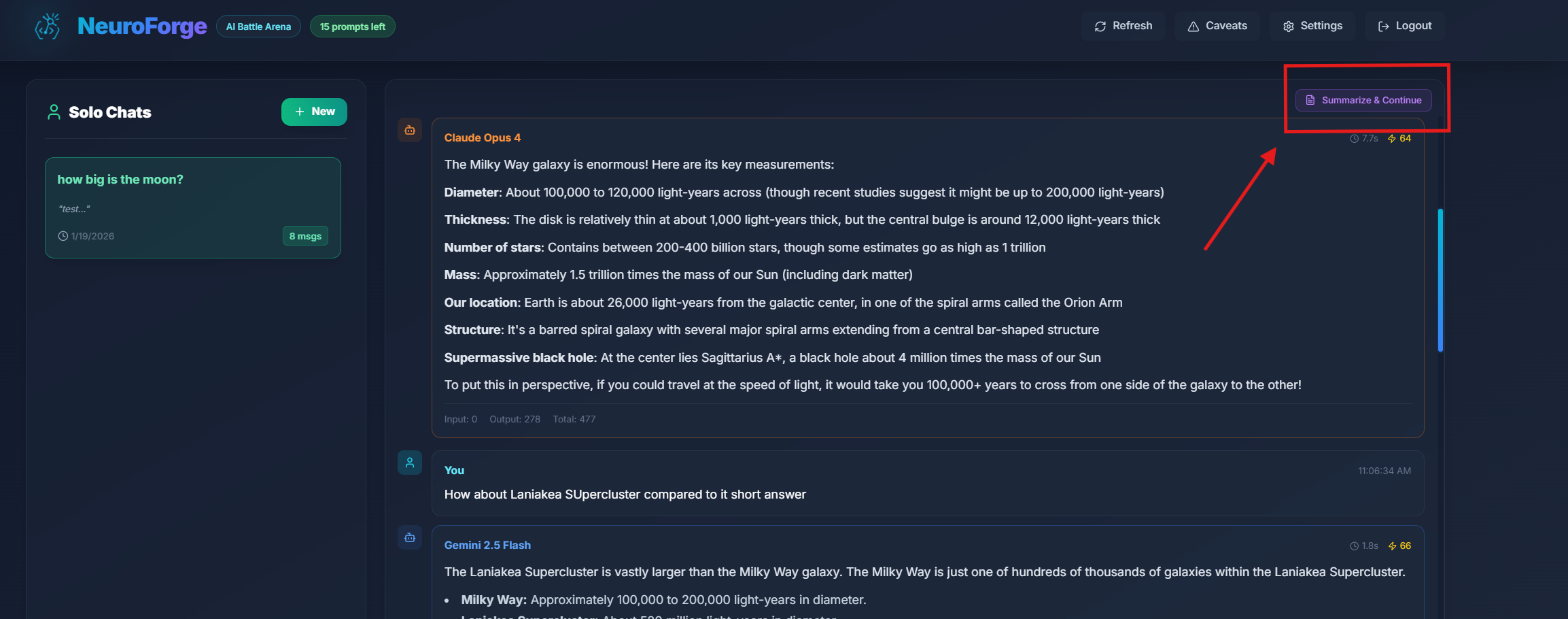
Why Summarize?
Each Solo thread has a maximum message limit (typically 100 messages). When you approach this limit, you'll see a warning indicator. Instead of losing your conversation context, Summarize & Continue:
- Creates a condensed summary of your entire conversation
- Opens a new thread starting with that summary
- Preserves essential context while freeing up space for more messages
How It Works
- When your thread approaches the message limit, a Summarize & Continue button appears
- Click the button to open the summarization modal
- Choose which AI should generate the summary (GPT, Claude, or Gemini)
- Click Summarize to create the summary
- A new thread is created titled "Continued: [Original Title]"
- The AI's summary becomes the starting point for your new thread
Thread Limit Indicators
Solo Mode displays visual indicators as you approach the limit:
- Warning (90+ messages) - Orange indicator suggesting you consider summarizing
- Critical (100 messages) - Red indicator when you've reached the limit
Summarizing consumes 1 prompt. The AI generates a comprehensive summary of your conversation, which requires processing the full context.
With Summarize & Continue, you can effectively maintain unlimited conversation length. Each summary captures the key points, decisions, and context, allowing you to continue seamlessly in a fresh thread.
Error Handling
NeuroForge handles errors gracefully. You'll always receive a clear message about what went wrong — no cryptic API dumps or console gibberish.
Common Errors:
- Input too long: Message appears instantly, and your prompt isn't consumed
- Model timeout: "⚠️ Model exceeded maximum response length or time limit"
- Prompt balance depleted: Prevented from submitting new prompts.
If an error occurs before models respond, your prompt credit is not consumed.
Security & Authentication
Access to NeuroForge is managed through secure JWT-based tokens. Each token carries your usage limits and permissions.
- Tokens can expire or be reset by administrators
- HTTPS end-to-end encryption
- Input sanitization to prevent injection attacks
- Strict separation between user and admin panels
Example Workflow
Let's walk through a complete example:
- You log in with your token and see your Welcome Dashboard, confirming your current prompt balance
- You create a thread titled "Explain relativity like a pirate"
- You type your prompt and click Start/Continue Battle
- Within seconds, GPT, Claude, and Gemini all respond — one serious, one comedic, one overly poetic
- NeuroForge scores each and declares a winner
- You click Analyze on Gemini's overly poetic response — Claude and GPT critique it mercilessly, disqualifying Gemini
- You analyze one more time,this time on Claude, disqualifying him and GPT emerges as the final winner
- Three prompt credits consumed, dozens of insights gained
An AI experiment turned into a sport.
For Developers & Self-Hosting
If you deploy NeuroForge yourself, you can:
- Host the backend on Node.js/Express with MongoDB
- Build the frontend with React
- Control rate limits, scoring weights, and model endpoints through environment variables
- Integrate your own OpenAI, Anthropic, or Google API keys
Check Self-Hosting documentation by switching the tab at the top of this page to "Admin Panel (self-hosted) for more information.
Latest Changelog
The latest update introduces major improvements across settings, scoring, customization, performance, and the overall battle experience. This changelog highlights the most recent version updates.
This section is automatically updated on each live release and reflects the latest changes summary only.
Version 1.8.0 (Latest)
Below is a summary of all new features, fixes, and optimizations available in the latest version (v1.8.0) release:
# 🧪 NeuroForge v1.8.0 – Latest Patch Summary

## 🚀 Major New Features

### Solo Mode - Focused 1-on-1 Conversations
• New conversation mode for dedicated single-agent chats
• Agent switching mid-conversation while maintaining full context
• Choose between GPT, Claude, or Gemini for each response
• Separate thread storage - Solo and Tournament threads are completely isolated
• Agent indicator showing which AI generated each response
• Automatic fallback if selected agent fails (with notification)
• Quality scoring for individual responses even without competition

### Costs Tab - Token Usage Tracking
• New Settings tab showing detailed token consumption
• Breakdown by mode (Solo vs Tournament) and agent (GPT, Claude, Gemini)
• Input vs Output token tracking for precise cost analysis
• Estimated cost calculations based on current API pricing
• Helps optimize usage patterns for cost efficiency

### Summarize & Continue - Unlimited Conversations
• Overcome thread message limits (100 messages) in Solo Mode
• AI-generated summary preserves essential conversation context
• Creates new thread with summary as starting point
• Choose which AI generates the summary
• Visual indicators at 90+ messages (warning) and 100 messages (limit)
• Consumes 1 prompt per summarization

### General Settings Tab
• New Settings tab for mode configuration
• Easy toggle between Tournament (Side-by-Side) and Solo (Individual) modes
• Mode switch takes effect immediately without page reload

## 🐞 Bug Fixes
• Fixed input tokens not being tracked in cost calculations
• Fixed Solo Mode input bar collapsing on page refresh
• Fixed file upload in Solo Mode ("n is not a function" error)
• Fixed textarea not shrinking when deleting text
• Fixed thread selection persisting incorrectly when switching modes
• Fixed threads from other mode appearing in sidebar

## ⚡ Performance & Optimization
• Improved textarea auto-resize behavior
• Enhanced mode switching with proper thread clearing
• Better token logging for accurate cost tracking
Version 1.8.0 introduces Solo Mode for focused 1-on-1 AI conversations, a Costs tab for token usage tracking, and Summarize & Continue for unlimited conversation length. These features provide more flexibility in how you interact with AI models while maintaining full visibility into resource consumption.
Version 1.7.0
Below is a summary of all new features, fixes, and optimizations from the v1.7.0 release:
# 🧪 NeuroForge v1.7.0 – Latest Patch Summary

## 🚀 Major New Features

### Forge Memory - AI Performance Intelligence
• Category-based performance tracking across all your battles
• Automatic prompt categorization (Coding, Creative, Analysis, etc.)
• Per-category statistics: Round Wins, Tournament Wins, Win Rate, Avg Score
• AI-powered recommendations for best model per task type
• Historical data analysis with minimum threshold requirements

### Auto-Tournament Mode
• Fully automated 3-round elimination tournaments
• Real-time progress indicator showing current round and eliminations
• Hands-free operation - submit prompt, watch the battle unfold
• Complete results panel with elimination timeline and winner announcement
• Same 3-prompt cost as manual tournaments

### Parallel Universes - Multi-Tournament Analysis
• Run 3 complete Auto-Tournaments simultaneously
• Aggregated results across all universes
• Consistency scoring to identify true best performers
• Statistical confidence for critical decisions
• Best response selection from all tournament runs

### Evolution View - Score Visualization
• Horizontal bar chart showing score progression across rounds
• Color-coded model performance (Green=Winner, Red=Eliminated)
• Crown and skull icons for winner/elimination markers
• Visual storytelling of tournament dynamics
• Integrated into Tournament Results panel

### File Attachments - Multimodal AI Analysis
• Upload images, code, PDFs, and data files for AI analysis
• Support for 30+ file types: images, code (JS, TS, PY, etc.), configs (JSON, YAML), and more
• All three models (GPT, Claude, Gemini) can analyze attachments
• Smart file size limits to stay within token budgets (50KB code, 100KB config, 5MB images)
• Drag-and-drop interface with file previews and type icons
• Works with Manual Mode, Auto-Tournament, and Parallel Universes
• GPT uses low-detail mode for images (~85 tokens vs ~25k tokens)
• Gemini includes automatic retry with exponential backoff for rate limits

## 🐞 Bug Fixes
• Fixed crash in Tournament Results when elimination data was undefined
• Fixed round winner incorrectly showing eliminated models
• Fixed Gemini displaying as "1.5 Flash" instead of correct version
• Fixed Forge Memory category detection for coding/script prompts
• Fixed failed API responses not being treated as disqualifications
• Fixed tournament wins not counting properly in statistics

## ⚡ Performance & Optimization
• Improved category detection with priority-based pattern matching
• Optimized model name resolution with simplified friendly names
• Enhanced error handling for API quota errors
Version 1.7.0 introduces powerful new competitive features: Forge Memory for intelligent performance tracking, Auto-Tournament for hands-free battles, Parallel Universes for statistical confidence, Evolution View for visual score analysis, and File Attachments for multimodal AI analysis of images, code, and documents.
Version 1.6.0
Below is a summary of features, fixes, and optimizations from the v1.6.0 release:
# 🧪 NeuroForge v1.6.0 – Patch Summary

## 🚀 Features
• Overhauled Settings Modal → redesigned AI Agents tab for cleaner navigation.
• New "Scoring" system with full user-configurable weight sliders:
    ├─ Adjust Success Weight
    ├─ Adjust Speed Weight
    ├─ Adjust Completeness Weight
    ├─ Adjust Accuracy Weight
    ├─ Adjust Readability Weight
    └─ Adjust Structure Weight
• Added Scoring Presets (Balanced, Accuracy-Focused, Creative, Speed-First).
• Import/Export scoring configurations via JSON.
• Added guidance explaining score computation & how analysis rounds work.
• Added "Personas" tab → users can create up to 5 custom personas:
    ├─ Assign persona to all agents or individual agents
    ├─ Instantly available in AI Models tab after creation
    └─ Persona instruction limit: 200 words (performance-optimized)
• New "Statistics" tab:
    ├─ Shows Global Round Wins + Tournament Wins across all threads
    ├─ Thread-level statistics now display per-thread win data
    └─ Deleting a thread auto-updates global stats
• History view updated to show Tournament Winner label (not only Round Winner)
• Added "Caveats" Modal explaining app limitations, model behaviors & expected quirks


## 🐞 Bug Fixes
• Fixed Global Statistics not updating correctly after thread deletion.
• Fixed API rate-limit issue causing logout/login failures.
• Fixed inconsistent personality dropdown rendering in Settings.
• Fixed disqualified agents in History showing API errors instead of proper disqualification cards.
• Fixed multiple prompt-refund edge cases where a prompt was not refunded when all 3 models failed.
• Fixed several UI inconsistencies and minor logic errors.


## 📱 Responsive Fixes
• Fixed navigation overlap issues on smaller screens.
• Fixed Settings → Personalities tab where inner container wouldn't scroll.
• Fixed header button overflow on narrow devices.
• Applied multiple minor mobile layout improvements.


## ⚡ Performance & Optimization
• Improved API response times across all 3 model providers.
• Optimized built-in personality templates to use fewer tokens per request.
• Improved Scoring Engine evaluation overhead.
This update significantly enhances flexibility, customization, scoring control, model behavior shaping, and system performance — making NeuroForge more powerful and configurable than ever.
Conclusion
NeuroForge isn't just a testing tool — it's a lens into the behavior of modern language models. It helps you see how models reason differently, where they excel, and where they fail — and it makes that analysis visual, measurable, and even fun.
So go ahead — create your first thread, send your first battle prompt, and watch the AIs fight for your approval.
NeuroForge Admin Panel Guide
Self-Hosted Edition
This manual walks you through everything an administrator can do in the NeuroForge Admin Panel when running the self-hosted edition: creating access tokens, managing users in bulk, tuning global limits, reading analytics, auditing activity, and watching server health.
The Admin Panel is a control cockpit for access & usage. It does not make prompts itself. It configures and observes the environment the NeuroForge App runs in.
Generate Token (Manual User Creation)

The token generation system issues signed access tokens carrying the username, max prompts, and optional expiration.
Form Fields
| Field | Description |
|---|---|
| Username | The user's identifier (email or handle) |
| Max Prompts | Total monthly allowance |
| Expiration | ISO date (optional) - token stops working after this date |
After Clicking "Generate Token"
- A brand-new token is returned and shown below the form
- Click Copy and hand it to the user (DM, email, etc.)
If the user loses their token later, you'll need to generate a new one. For security, tokens are not stored for future viewing in the admin panel.
Good to Know
- You can create multiple tokens for the same username if needed (e.g., rolling keys)
- Expired tokens are rejected automatically
- New users will only become visible in the admin panel once they login the first time with their generated token which also activates their account on first time usage
Manage Users
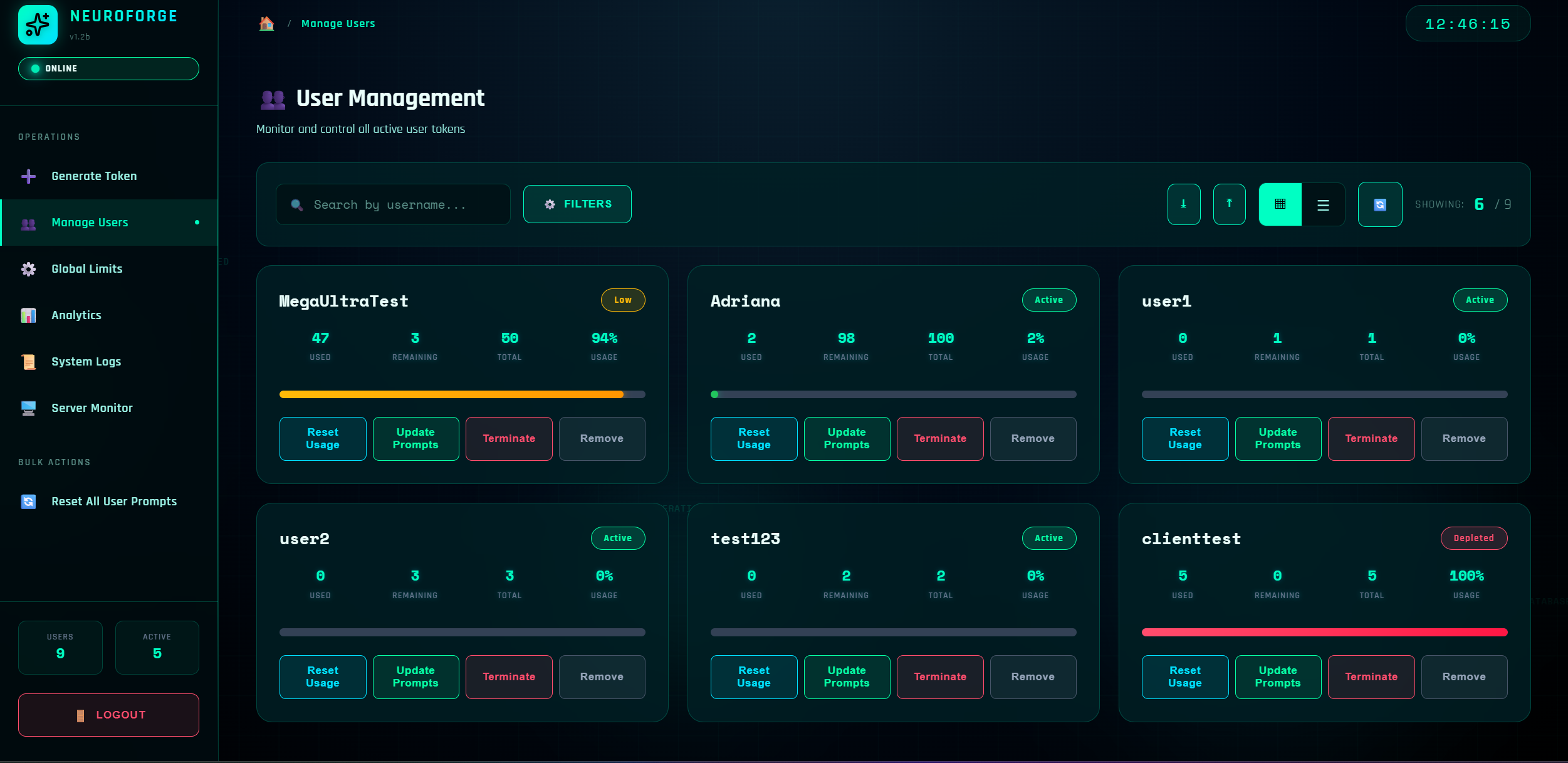
This is your control room for individual accounts and bulk operations.
User Statistics Explained
| Metric | Description |
|---|---|
| Used | Prompts consumed so far (this billing cycle) |
| Remaining | maxPrompts - used (floors at 0) |
| Total | The current maxPrompts assigned |
| Usage % | round((used / maxPrompts) * 100) |
User Statuses
| Status | Color | Meaning |
|---|---|---|
| Active | 🟢 Green | Can still prompt; not near depletion |
| Low | 🟡 Yellow | Over 80% consumed; consider topping up |
| Depleted | 🔴 Red | 100% used OR deliberately terminated |
| Removed | ⚫ Gray | Permanently disabled; cannot be re-enabled |
"Depleted" includes Terminated users because termination sets maxPrompts = 0, making usage effectively 100%.
User Actions
Reset Usage
Sets used → 0, remaining → total, usage% → 0%
Example: was 10/10 used → becomes 0/10 usedUpdate Prompts
Changes total (maxPrompts) without altering used.
Example: user had used=5, total=10
→ update to total=20
→ now used=5, remaining=15, usage=25%
Terminate
Immediately blocks access: sets maxPrompts = 0, used = 0, status appears as Depleted.
To restore, use Update Prompts to a value > 0 (Reset Usage alone won't help because total=0).
Remove
Permanent ban: status becomes Removed, maxPrompts=0. This prevents the account from being re-created by any existing/old token.
You can hide removed users via filters, but they cannot be reactivated.
Filters, Views, and Utilities
- Search by username
- Filters: status toggles (All, Active, Low, Depleted, Removed), usage %, ranges
- Card/Table view toggle
- Refresh list
- Export CSV: downloads the currently filtered list
CSV Export Columns:
User, Prompts Used, Prompts Remaining, Total Prompts, % Usage, StatusImport CSV (Bulk User Creation)
- Click Import CSV
- Download the Example CSV to see the required format:
user,maxPrompts,expires
jane@acme.com,150,2025-12-31
dev-team,300,
expires is optional (leave empty for no expiry)
- Upload your file. You'll see:
- A progress bar
- Validation errors (e.g., "row 3: invalid date format")
- On success, a result table with a new Token column for each user
- Click Download updated CSV with tokens to save the full list
Tokens shown here are one-time view. Close the popup without downloading and you won't be able to retrieve the same tokens again.
Global Limits
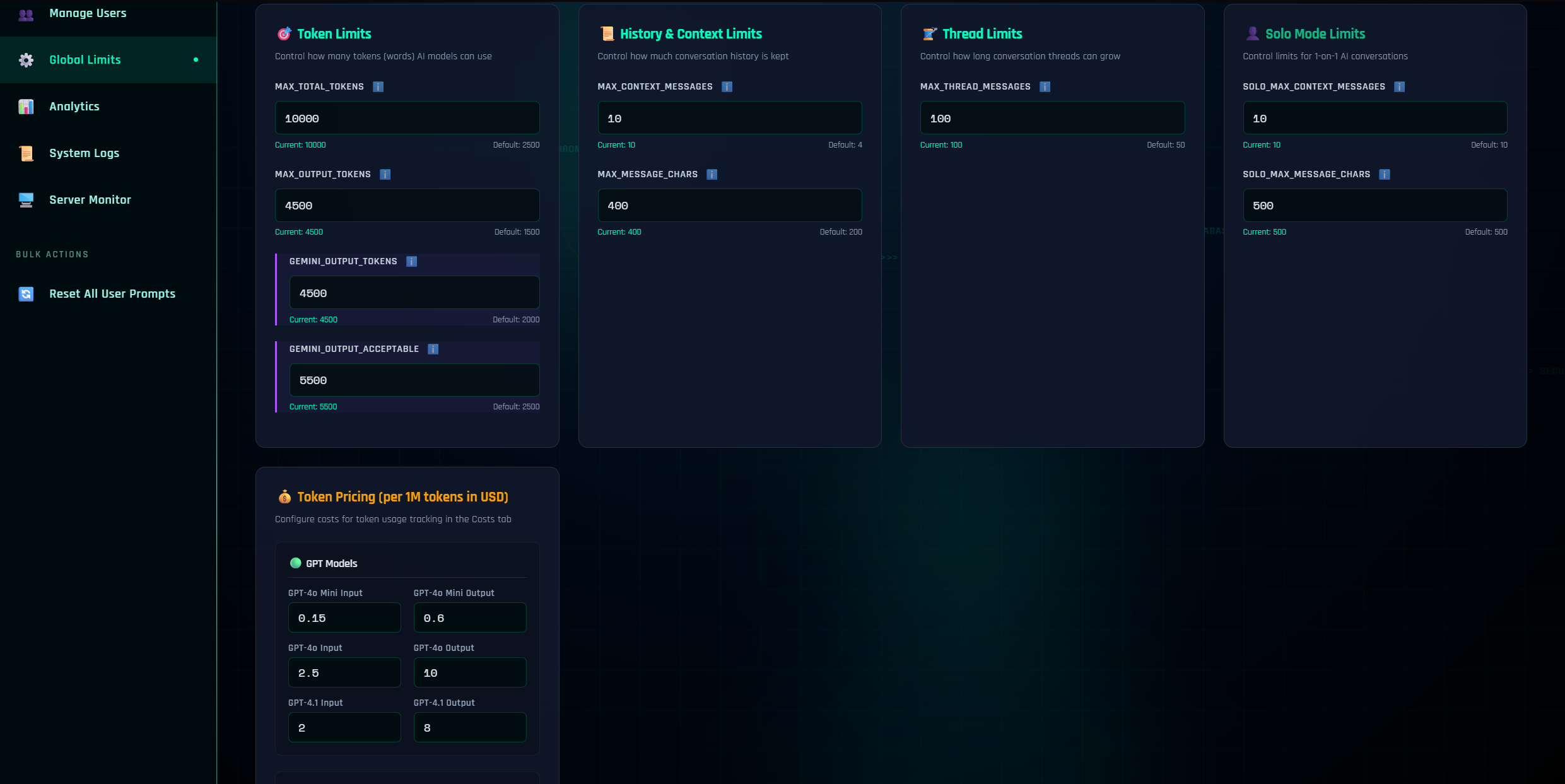
These are platform-wide guardrails that apply to all users and all models. Changing them restarts the backend quickly to take effect.
Token Limits
| Setting | Description |
|---|---|
| MAX_TOTAL_TOKENS | Ceiling for input + output tokens per response |
| MAX_OUTPUT_TOKENS | Hard cap for model output length (subset of total) |
| GEMINI_OUTPUT_TOKENS | Per-model fine-tuning (Gemini tends to be verbose) |
| GEMINI_OUTPUT_ACCEPTABLE | Tolerance limit (Gemini often ignores the request limit) |
History & Context Limits
| Setting | Description |
|---|---|
| MAX_CONTEXT_MESSAGES | How many prior messages are carried forward per thread |
| SOLO_MAX_CONTEXT_MESSAGES | How many prior messages are carried forward per thread in Solo Mode |
| MAX_MESSAGE_CHARS | Max chars per past message kept in context |
| SOLO_MAX_MESSAGE_CHARS | Max chars per past message kept in context in Solo Mode |
Thread Limits
| Setting | Description |
|---|---|
| MAX_THREAD_MESSAGES | Soft cap for thread length (users should start a new thread after reaching this) |
Defaults are production-safe. Raise gradually and monitor Server Monitor and Analytics for impact. Saving limits triggers a fast backend restart (seconds).
You can also modify Token Pricing (per 1M tokens in USD) in this section which reflect in the Costs tab under Settings.
Analytics
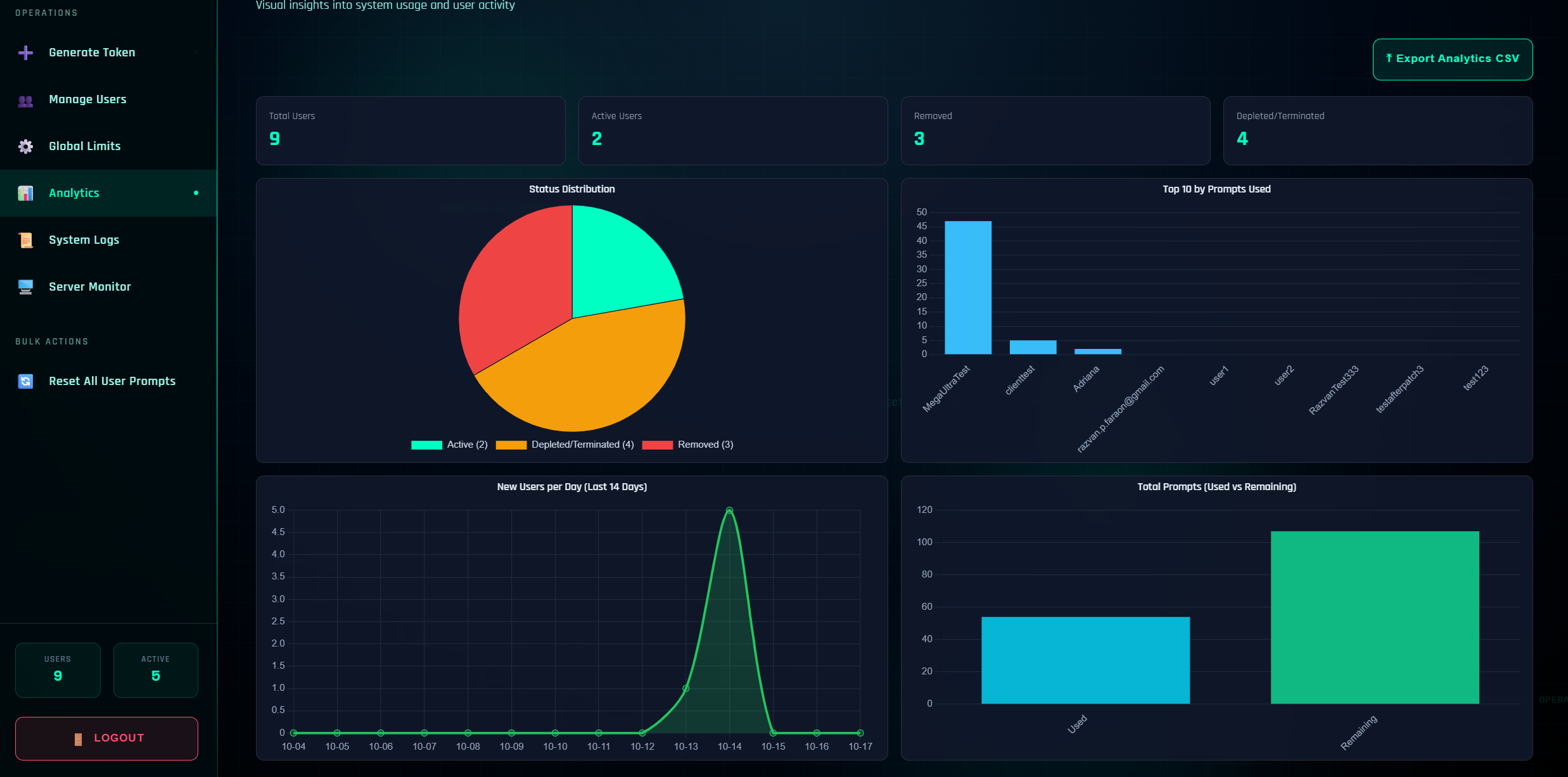
The Analytics tab gives you a visual pulse of the system:
Available Charts
- KPI Cards: Total users, active users, removed, depleted/terminated
- Status Distribution (pie): How your user base segments across statuses
- Top 10 by Prompts Used (bar): Your highest-volume accounts
- New Users per Day (line): Last 14 days growth curve
- Total Prompts: Used vs Remaining (bars)
Watch the "Top 10" and "Used vs Remaining" alongside Global Limits—they'll tell you when to raise ceilings or add capacity.
The analytics charts are filled by current existing data, therefore, changing data will reflect in the charts. Example: If one of your users has 100% usage and is at the top of the usage chart and you reset usage to 0%, it will no longer be at the top of the chart and will reflect in the chart as 0% usage.
Export Analytics CSV
One click to snapshot your current view for reporting.
System Logs (Audit Trail)
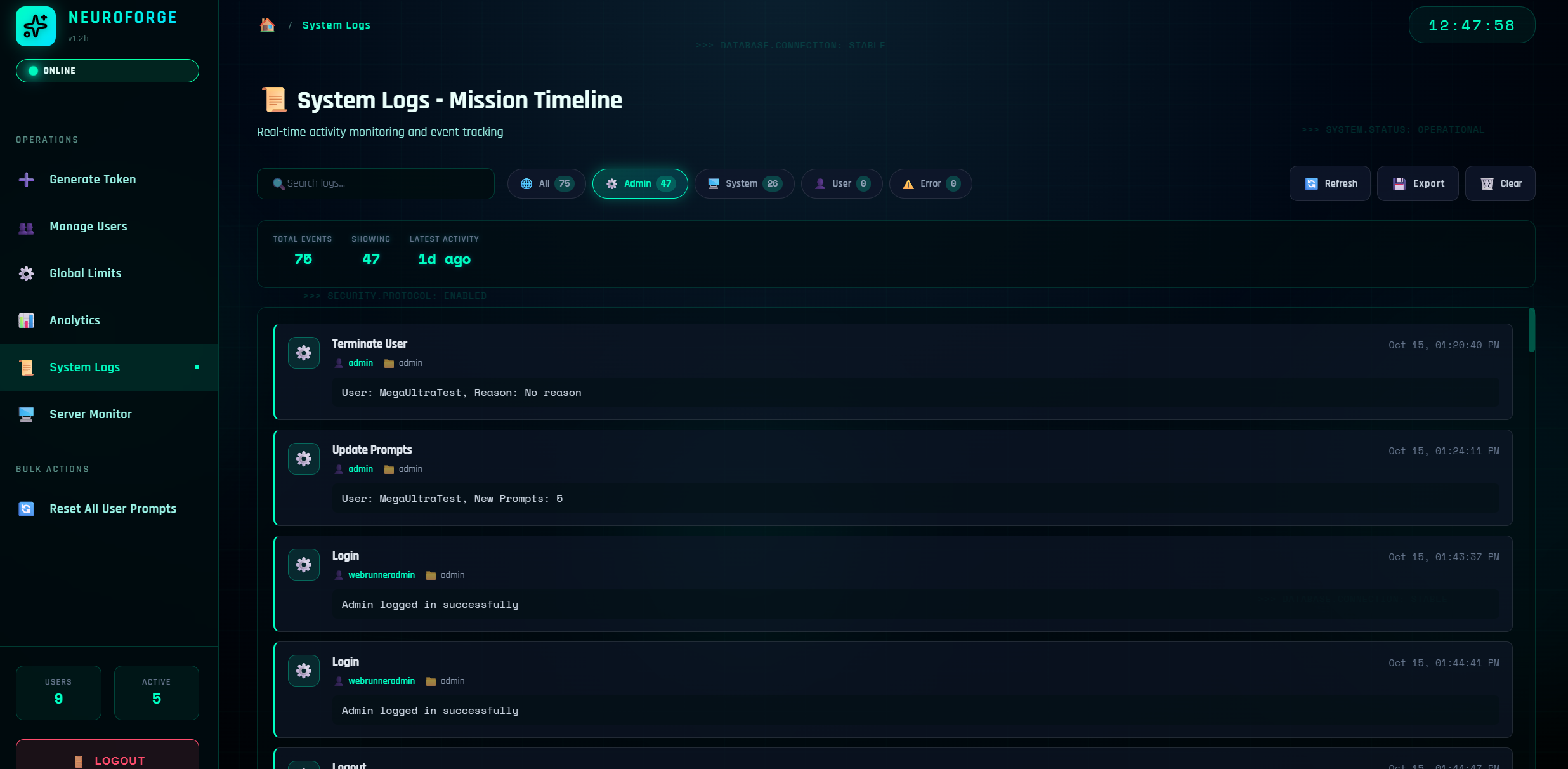
Everything important gets recorded here. You'll see:
- Admin actions: generate token, update prompts, reset usage, terminate/remove user, clear logs, import/export CSV, etc.
- System events: logins/logouts, backend restarts (from limit changes), rate-limit denials
- User signals: notable user-level system events (if enabled)
- Error events: parse failures, bad CSV rows, invalid tokens, etc.
Log Features
- Search by text
- Filter by type (All/Admin/System/User/Error)
- Export current logs to JSON
- Clear Logs (with confirmation)
Example Log Entries:
SYSTEM / Login – "Admin logged in successfully"
ADMIN / Update Prompts – "User: alice, New Prompts: 200"
ERROR / Import CSV – "Row 4: unknown column 'maxPromptz'"
Server Monitor
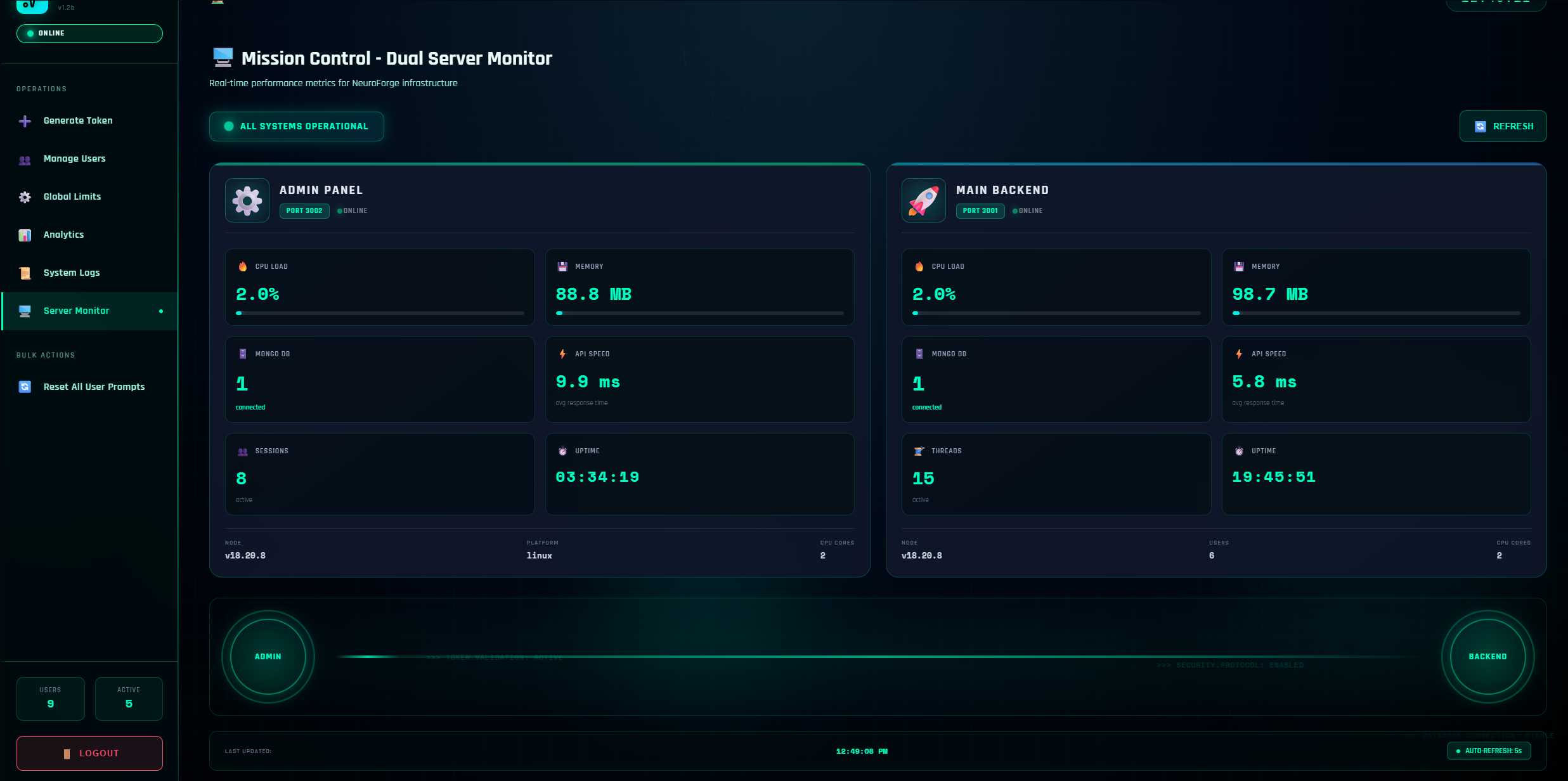
A clean, real-time overview for both processes:
Admin Panel Metrics (Port 3002)
- CPU Load – % usage over the last sample window
- Memory – Current RSS in MB
- MongoDB – Connection status + pool count
- API Speed – Rolling average response time
- Sessions – Active admin sessions
- Uptime – Since process start
- Node / Platform / CPU cores – Environment basics
Main Backend Metrics (Port 3001)
- Similar metrics as admin panel
- Also shows Active Threads (open user conversations)
- Shows Total Users count
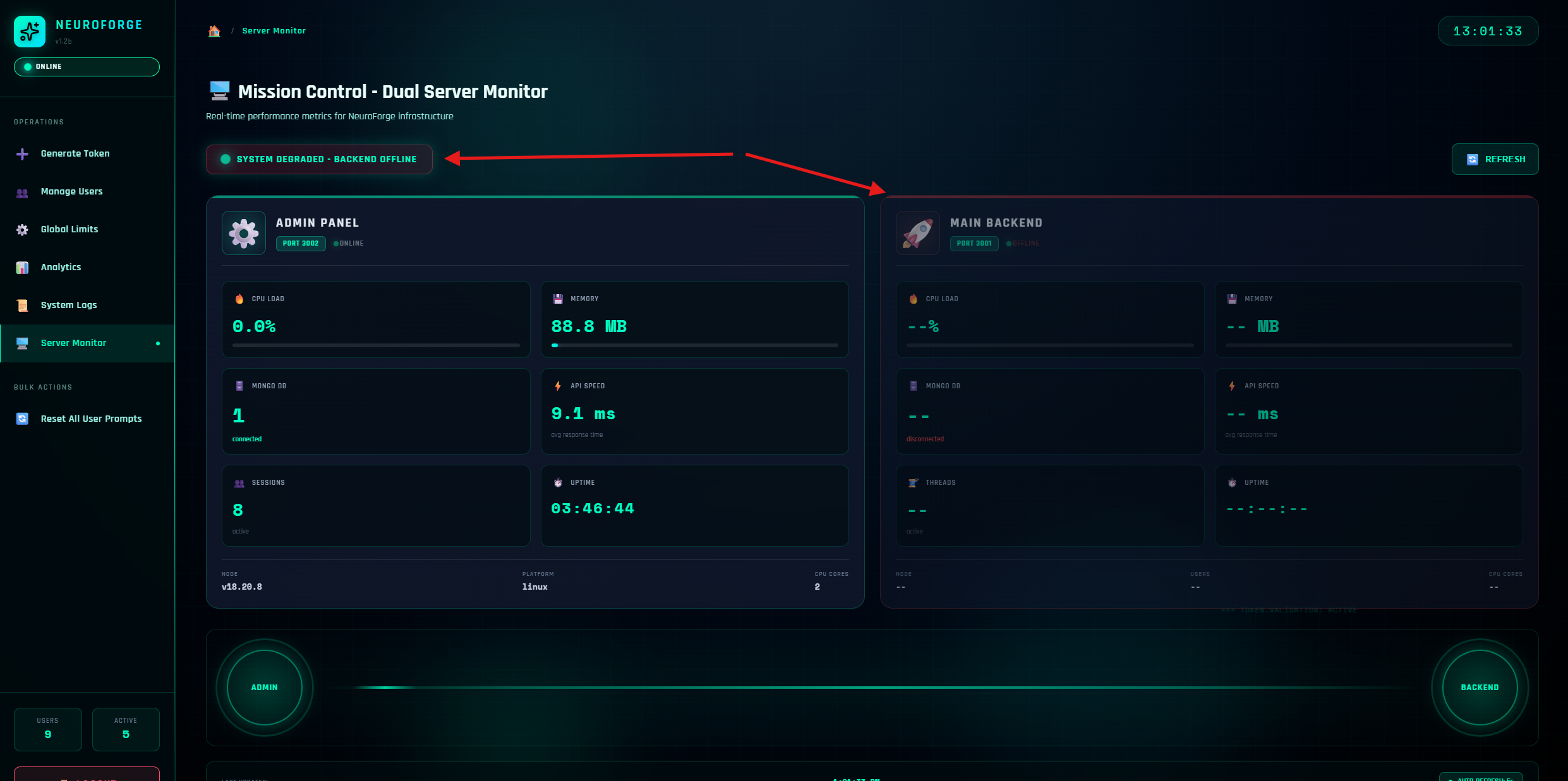
Live offline detection
If you backend is down, this will be flagged here as system degraded and show as offline
Enabled by default (every 5 seconds). Use Refresh Now for a manual pulse.
If API Speed rises and CPU/Memory aren't pegged, you're likely I/O constrained (e.g., network to model providers). If CPU/Memory peg, scale vertically or horizontally.
Limits, Billing, and Prompt Consumption
How It Really Works
- One end-to-end battle prompt (all three models respond) consumes 1 prompt total
- Tournament/Analysis stages consume 1 prompt per analysis round
- The full prompt→analysis→final flow costs 3 prompts, not 6
Cycles & Resets
- User allowances reset monthly on the user's billing date
- Resetting an individual user in Manage Users sets
used=0without changing their total - Global hard limits (timeouts, tokens, memory) apply regardless of the user's remaining balance
Security & Roles
- Tokens are bearer credentials. Treat them like passwords.
- Removed accounts cannot be re-created by any old token (we mark & block).
- Terminate is reversible (set prompts > 0). Remove is final.
Best Practices
- Prefer expiring tokens for contractors/trials
- Rotate tokens if one is suspected compromised
- Export logs regularly and store them off-box
Troubleshooting
User Can't Log In
- Check System Logs for
SYSTEM / Loginerrors - Confirm token not expired; confirm user status not Removed/Terminated
- If Terminated, use Update Prompts to restore > 0
"Tokens Exceeded" or "Took Too Long" Errors
- Raise
MAX_TOTAL_TOKENSorMAX_OUTPUT_TOKENSgradually - If latency hits the 30s timeout: try lowering output caps or simplifying prompts
Import CSV Fails
- Download the Example CSV and match headers exactly:
user,maxPrompts,expires - Dates must be ISO (YYYY-MM-DD)
- Keep under a few thousand rows for smooth UX; if you plan more, split files
Analytics Show 0 But Users Exist
- Click Refresh
- Check that
/api/usersreturns data (network/auth) - If you recently changed Global Limits, wait a moment for the backend restart
Backup & Maintenance Tips
- Logs are in your admin app's
/logsdirectory. Snapshot them periodically - Use PM2 (or your process manager) to keep both Admin and Backend online
- After OS updates or Node upgrades, validate Server Monitor shows both services healthy
Requirements (Self-Hosted)
| Component | Requirement |
|---|---|
| Node.js | v18.20.8+ |
| CPU | ≥ 2 cores (scale with traffic) |
| RAM | ≥ 2 GB (4 GB recommended) |
| Disk | ≥ 500 MB (plus headroom for logs/data) |
| Database | MongoDB or MySQL |
| OS | Linux (Ubuntu, Alma, Amazon Linux, etc.) |
AWS EC2 is a great fit for hosting NeuroForge.
Support, Licensing, and Customization
- Your one-time license covers lifetime use and updates
- We provide install, update, and usage guides for both the Admin Panel and the NeuroForge App
- We also include developer docs (code structure and endpoints) for teams who want to extend NeuroForge
If you fork/modify core code, we can't guarantee support for the modified version. Keep a vanilla backup if you plan experiments.
License integrity must remain intact; tampering leads to a permanent ban.
Real-World Scenarios
A. "Client used up everything mid-demo."
Solution: Manage Users → search client → Update Prompts from 50 → 100 (keeps their used count intact), then click Reset Usage if you want to grant a clean slate.
B. "We offboarded a freelancer."
Solution: Manage Users → Terminate to pause immediately. If you need an irrevocable block (and to prevent token resurrection), Remove. Hide removed users via filter.
C. "We're shipping a long report; responses keep getting cut."
Solution: Global Limits → raise MAX_OUTPUT_TOKENS by +250 steps, keep MAX_TOTAL_TOKENS reasonable, and watch Server Monitor. If response times climb, back off by 100–200.
D. "We imported 100 users and ops wants a list of all their tokens."
Solution: Use Import CSV with your master list → validate → success → Download updated CSV with tokens → store securely (password-vault or encrypted share).
Conclusion
The NeuroForge Admin Panel gives you complete control over your self-hosted AI Battle Arena. Use it wisely, monitor regularly, and your users will have a seamless experience.
For technical support or custom development inquiries, contact your account manager or visit our support portal.